What is this?
Checkout the Artstation post here!
This is a comprehensive breakdown of all blueprints and shaders utilised in the Pink Lady Diner. My project has a lot of components and I figured it would be worth breaking down for anybody wanting to achieve similar outcomes or troubleshoot similar logic. Plus, I just love talking about the diner so its another excuse to give it the breakdown it deserves.
Blueprints – The Wurlitzer 1015 Jukebox
The Wurlitzer 1015 jukebox by design has 3 key components; playing songs from an array of tracks, mechanically animate the playing of songs and have synced emissive lights/tubes that rotate a LED strip. And so, the cumulation of this all minus the material shaders here is what you see above, a massive graph with concise sectors that I will further breakdown below.
Misc Functions for Jukebox
For handling the point lights around the Wurlitzer alongside randomising song selection these two graphs handle the logic. For matching the light colour I’ve grabbed all the light components and using a timeline with slate colours, update the light colours as per the time. I’ve timed these changes to match the emissive panning material. As for the random song selection, I’ve utilised a random integer in range to grab a randomised track from the song array list. A Boolean check ensures once this is done the song can be rerandomized on a replay. There are 12 unique tracks possible to be played all themed to the 80s!
Scene Audio Controller
One large issue I ran into when making the jukebox was the clash of ambient audio vs the music played. By adding attenuation, you can ensure that songs only sound loud when played around the jukebox however any ambient music will still overlap in this zone. So, to fix this I created a simple audio controller that exists in scene, allowing the jukebox to call to it to quieten the ambient diner track when a song is played. Should the song finish early or naturally the controller will be updated using the function; make quiet.
Beginning Interaction - Jukebox
As the jukebox graph is quite dense, I have broken it into multiple breakdowns here, the first being the interact play sector. The jukebox has to detect the player and allow them to both play and quit the song at any moment. For optimisation I have used a gate to control these parameters as the blueprint will only begin to listen for further instructions should the gate be opened (by the player being there). The casting is to ensure that the player can use the interact event much rather than the Wurlitzer waiting for itself to cause this event. Following a successful interaction (pressing E key + player being in the collision box) the jukebox performs a self-check on Boolean values. If events such as randomisation for song have not occurred this action is performed, if set true then the value is reset for the next button press. Ambient audio control is used here too to ensure background noise is quietened for optimal listening.
Playing the Record Part 1
The play sequence occurs should the playing song value be false. This Boolean is set to true once commencing alongside setting the first sound for the audio player. This sound is not the song but a whirling ambient clicking noise I recorded off my own record player as the Wurlitzer is purely mechanical. I wanted to add a bit of believability and ensure the player has amped up expectations building up to the song. Following nodes execute motion on the Wurlitzers interior components. These all animate in varying degrees of motion either Y or Z by linear interpolating timelines. As I wasn’t fully sure what value they would have to stop at, I made them parameters to fine tune in engine. This proved useful as clipping was one of my largest problems initially in execution. Additional checkpoints exist, these being Boolean values that record at what state the animation is, to help provide an equal quit point. Looking back, I would change this from Boolean variables to a float that could be added and then checked if it aligns as it would cut down on having so many variables.
Playing the Record Part 2
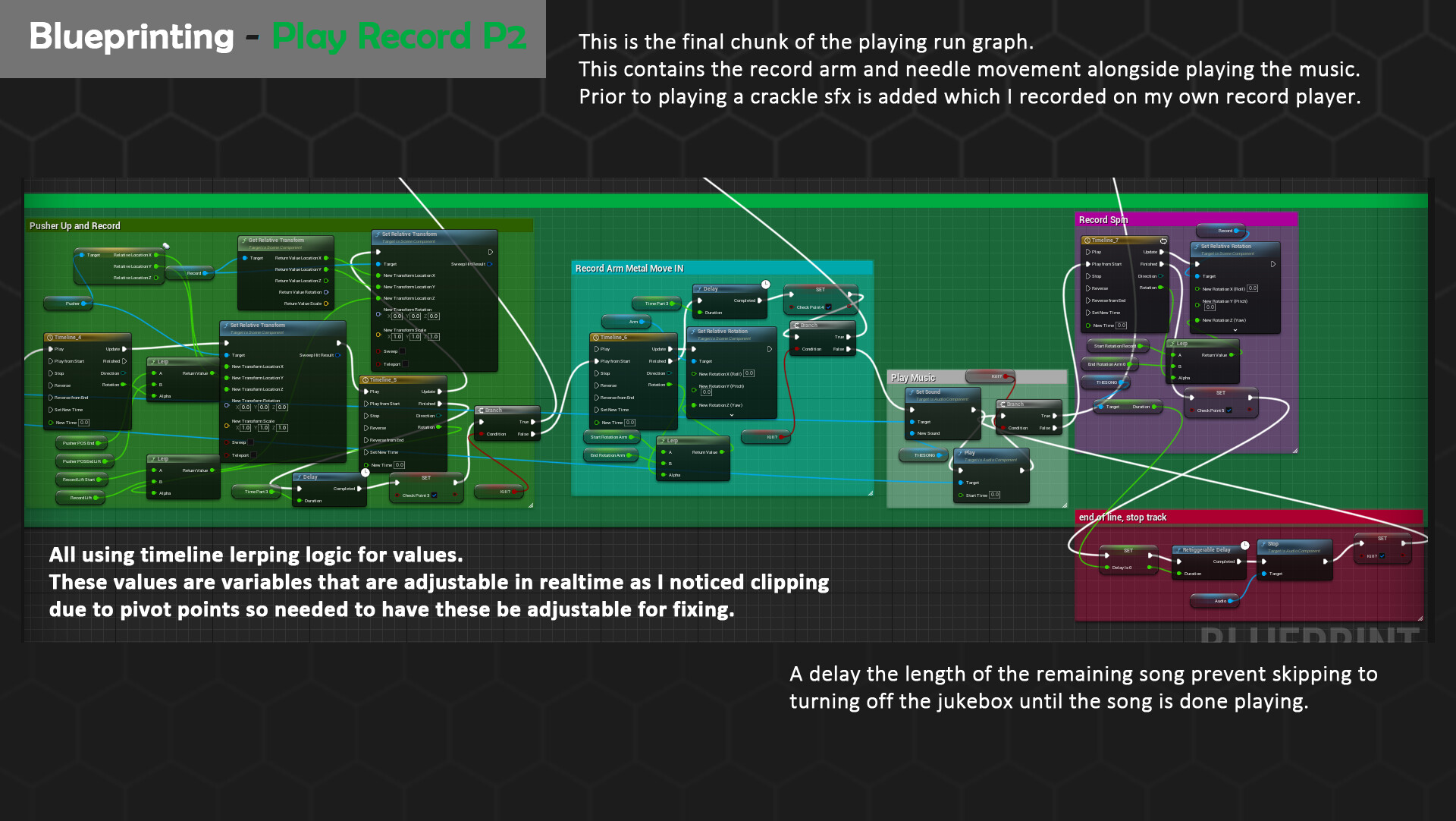
The second half of the play sequence reuses a lot of logic from the first. In future iterations I would recommend copying these values to a function and ensure you can input the mesh, stop and start values to reuse the logic much easier. Nearing the end the ambient clicking and record sfx is replaced with the proper chosen random song. Play is the commence, delaying the quitting/kill sequence until the length is done. I Encountered one major issue using the timeline setup when quitting as the record (which loops a full rotation) could not be stopped looping. Skip to my Bugfix subsection to find out more on how I fixed this issue.
Stopping the Record Part 1
Going back to the start branches, should the jukebox be interacted with again to quit the song the kill Boolean will spawn as true. The branches now check which checkpoints have been used to roll back the animation from, reversing all the timelines. Should the jukebox be stopped mid play, the song will additional be cut prior to all these rollback animations triggering. As previously mentioned in the future I would opt to use a float value to keep track of the state of the jukebox mechanical means however at the time knew no better. These graphs mirror that of the play mode just in reverse order.
Stopping the Record Part 2
The main brains behind the reset of the jukebox are the section commented ended naturally. This connects both the end of the play mode and the general checkpoint system after all roll back animations are executed. By first resetting the delay set by the length of the song, the song is then stopped and replaced. I have a secondary sfx for what the record player sounds like lifting the vinyl off and this is also killed here after execution nearing the start of the graphs.
Fixing Bugs!
One large problem I encountered I lovingly dubbed the floating vinyl bug is right as it says on the tin. Due to the timeline being set to loop, unlike the other timelines the animation never stopped updating. Even after not being called or executed to, after the vinyl was told to stop to start rollback animations it would continue floating + spinning. To fix this I cleaned up two sections, the first being the timeline. I added additional branches that use Booleans I already created for checking if a song is playing or if the kill sequence is activated to prevent setting the rotation if these are set on. This resolved the rotation issue however I soon realised a huge delay in cutting the song played, meaning the track would be back in the arm hold but cut there. This was due to a lot of unnecessary delays that I deleted and cleaned up the command. I also had a poor order of execution meaning it delayed prior to stopping the song causing the bug. Now all was right again.
Points of Reflection - Jukebox:
Overall, the jukebox is still the smartest blueprint I have cooked up however it does have its limitations and optimisation considerations. The first being a lot more functions to cut down on unique timelines + variables. The second being the sheer number of Boolean checks that are unnecessary for my checkpoint system should I have implanted a float counter instead. And the final consideration is cutting out the middleman of timelines altogether and using other means of linear interpolation over time. I feel that the performance impact it has with such a complex element that is only using a singular track could be vastly improved and I will be looking into more options in the future to implement such changes. However, looking ahead, I have never been more motivated for building on this logic to make more diverse systems. Speaking of more systems, this blueprint is only the cherry on top of the cake that is the rest of this post so strap in for everything else this interactive rock and roll diner has instore!
More Blueprints!
Clock
This clock blueprint is a much more simplified logic of the jukeboxes mechanical arm animations. However, in tune with how real-life clocks work I wanted to ensure that every single instance had a randomised position of the second hand, meaning they were all out of sync. A little detail that was executed with a function to set the random position at the start of the game and continue animating throughout the diner playtime.
Splines
Splines are elements I heavily utilised in the diner as there were so many elements that horizontally tiled. These being bunting, neon strips, exterior pavement, powerlines, and cables. For the bulk of the blueprint, I utilised this main base of logic to provide randomisation of the meshes in an array (e.g. bunting) or singular placement across a strip (e.g. neon). All logic occurs in construction as there is no need for these values to change in real time. Following on the loop is executed for all sectors of the spline, meaning that the correct chosen mesh is added. To help with deformation round corners I utilised tangents and location distance to breakup any overlap on the spline. Generally, a long graph that I strongly believe I can optimise further by copying subsections regarding tangent and location distance calls to the same variables, cutting down the get node.
Physics Part 1
Big thanks to Max Ryan for help setting this up! One of the most fun elements of the diner thus far is the physics elements that allow you to throw chairs, plates, cups like a thrashing greaser teen in the 80s. For implementing this logic, I built on top of the standard first-person controller script as I needed to utilise the cameras instructions surrounding line tracing. Objects are line traced and checked for if they can be picked up, alongside if the Boolean for an object has been triggered for having collected an object already. If no objects are picked up, and the object has a suitable physics asset to interact with it is then grabbed for location data. Following this every frame the location is updated with the first-person controllers one to maintain a grip on it. Should the pickup button be triggered again the release branch will play instead allowing releasing the physics component. Whilst a bit expensive it proves a very fun system to play around with, ensuring interactable meshes are both set to moveable and have physics enabled.
Physics Part 2
But that’s not all there’s more commands I added to the first-person controller to help make the scene easier to navigate and focus on objects. Zooming and crouching were easy to build in by setting an interaction key and lerping the placement or field of view for the camera. If you have an object picked up, I also implemented a scroll wheel sandbox like function to help, bring it closer or further away to yourself through two functions adjusting its position. Looking back on this graph there are limitations when interacting with larger objects as they may go out of frame due to their scale on the scroll function so I would recommend grabbing the bounding box of the mesh and using that scale to figure out how close it comes up to the camera rather than hardcore values.
Doors and Cupboards
What’s a diner without doors and cupboards stocked full of goodies right from the 80s. I knew I wanted to show off all the hardcore research I did to getting era accurate packaging, so cupboard/floor doors have the ability to be opened. General detection and door movable graph included pressing the interact key and animation its pivot point based on a flip flop node. Flip flop nodes are brilliant as it will remember what position it was in prior meaning you don’t need a Boolean for this. However, for cupboards I did want to limit some to be locked, especially corner clippable ones so I added a bit more logic. If the exposed Boolean for can be opened is set to false text will not only be added to tell the player the box is shut, however a short wiggle will occur on the pivot of the door. Most important elements for this blueprint are ensuring the pivot of the mesh itself is aligned to where hinges are modelled, or else animation will rotate on the centre providing an unnatural swing.
Material Shaders –
My diner also had a lot of complex materials to help bring it to life and make the most out of my modular meshes + textures. Here’s all their shader logic broken down too.
Shaders – Glass:
Big thanks to Nina Klos for helping with this one! This glass shader works by utilising a Fresnel to help create a sharp glint at corners + edges. Alongside this the refraction index is set the normalised glass value meaning the behaviour of distortion will be alike with real glass. The cherry on top is the tint that is applied with a thin translucent material and plugs into the colour allowing a breakup in the materials general colour if plugged in. I also have an additional roughness control for tiling wear maps that I ended up not using but kept just in case.
Shaders – Wurlitzer 1015:
My jukebox isn’t just all blueprints this brilliant piece of ancient tech is also packed with 2 unique shaders to help animate those tubes. I watched countless videos on how it works internally to figure it out and the real thing proves to be extremely clever. For the large tubes that swap colours in real time the tubes rotate inside a thin piece of colour film that then is blasted with light, allowing that distinct cut fade. I replicated this behaviour by panning an additional emissive map downwards and by ensuring the unwrap for the tubes were horizontal. Duplicating the uvs allowed me to sync up the timing for these fades starting from the centre and fading out. The secondary material being the bubbler tubes that rely mainly on panning normal. I made an extra normal map that is blended together after being panned vertically to help flow up and down the tube. Whilst a small micro detail I wanted to add it as it adds another fun detail to spot during playtime. For real life the jukebox would heat up the bubble tubes causing them to flow up and internally pop due to the unique boiling point of the liquid. My normal pan the same direction however do not thermally combust.
Shaders – Master Material
To help with texture adjustments in engine I always employ creating a master material at the beginning of a project. The following is rather simple but provides ample adjustable parameters for the channel packed maps and the ability to cut out masking. My primary problem I encountered with this approach was that shader costs exponentially increased when enabling varying render methods e.g. translucency, two sided etc. To prevent a chair having to render this setting, once I made a good base master material, I duplicated the material to create variants with these settings applied. This made the instances on top of them more optimised in the long run.
Shaders – World Dirt using World Position
Being a diner, I knew grit and grime would scale up on just about anything that touches the ground. So, I added a world position mask that uses the blue channel (Z) to fade a noise of dirt onto meshes. The texture of this noise can be adjusted alongside intensity + colour in game. Due to using a world position node I knew I didn’t want to add this to my main master material as it would explode cost over every single asset hence it being a separate material to begin with.
Shaders – Flag and Wind WPO Movement
Having used cloth a lot in the past I knew that the smoothness of folds simulating was widely limited on the vertex count of the mesh. Which makes sense, it does have to move however not very game friendly to have an expensive flag plane, so I opted to use a material to animate micro movements. I used pre-existing panning noise from the simple grass wind and clamped these values alongside a gradient that scaled across the planes top and bottom sides. This helped focus the noise in a more uniform box that acts quite well to make the mesh look denser than it really is in the final simulated wind.
Shaders – Decal UV Atlas
Due to the sheer volume of decals I needed to make for table numbers I opted to have them all packed tight onto one sheet and simply scroll the UVS per instance to ensure the correct one is selected. This simple material provides that alongside having packed a roughness map into the normal to save on additional draw calls. In future shaders I would automate this to a value generated based on object position or that can be incrementally scaled via float parameter. As instances of the decal atlas require manual scroll adjustments which is finer control at the cost of a more time-consuming setup. Fortunately, due to how the UVS are packed the value to scroll between numbers is hardest per row and predictable, more reasons to be able to setup a more automated approach that I will explore in future shaders.
Shaders – Ceramic Emissive Lights
The lights I wanted to create proved to be a challenge due to the material it was made from, ceramic thickened glass. In real life the ceramic means the bulb inside creates a nice, softened glow alongside the thinnest points e.g. the edges and inside. I decide to use subsurface scattering which is commonly used in skin and foliage to achieve this affect alongside a channel packed thickness map to ensure more controller on the edges of the emissive. The result whilst easily overclocked at a good midtone value creates a smooth orangey glow.
Shaders – Exterior Foliage
All foliage in the scene is outside meaning I can drop costs for texture quality down. However, being grass in the deserted state of Nevada I decided to still implement typical grass wind movement that is clamped via a world position node to the ground. Additionally, I created a subsurface for the node by reusing the base colour map, hue shifting and lightning the result with multiply to help cut down on texture costs.
Controlling Time of Day
With an abundance of great neon and fun lights to play around I duplicated my final daytime scene twice more and lit it in a more morning + nighttime variant. To showcase these during playtime I created a simple graph that exists within the first-person controller that loads levels based on pressing a number between 1-3. As for optimisation level setup and reset once its built, I also included additional quit and reset keys using the same logic. These proved extremely useful during degree show as individuals playing the level could refresh the game and play from the start without shutting down the game.
Summary:
In conclusion I hope this documentation provides useful insights to building your own shaders and blueprints. There is no right or wrong way to build these elements however optimisation is key so elements to consider should you replicate this logic is: how many Booleans do you really need, channel pack as much as possible for textures and keep meshes static unless animated.
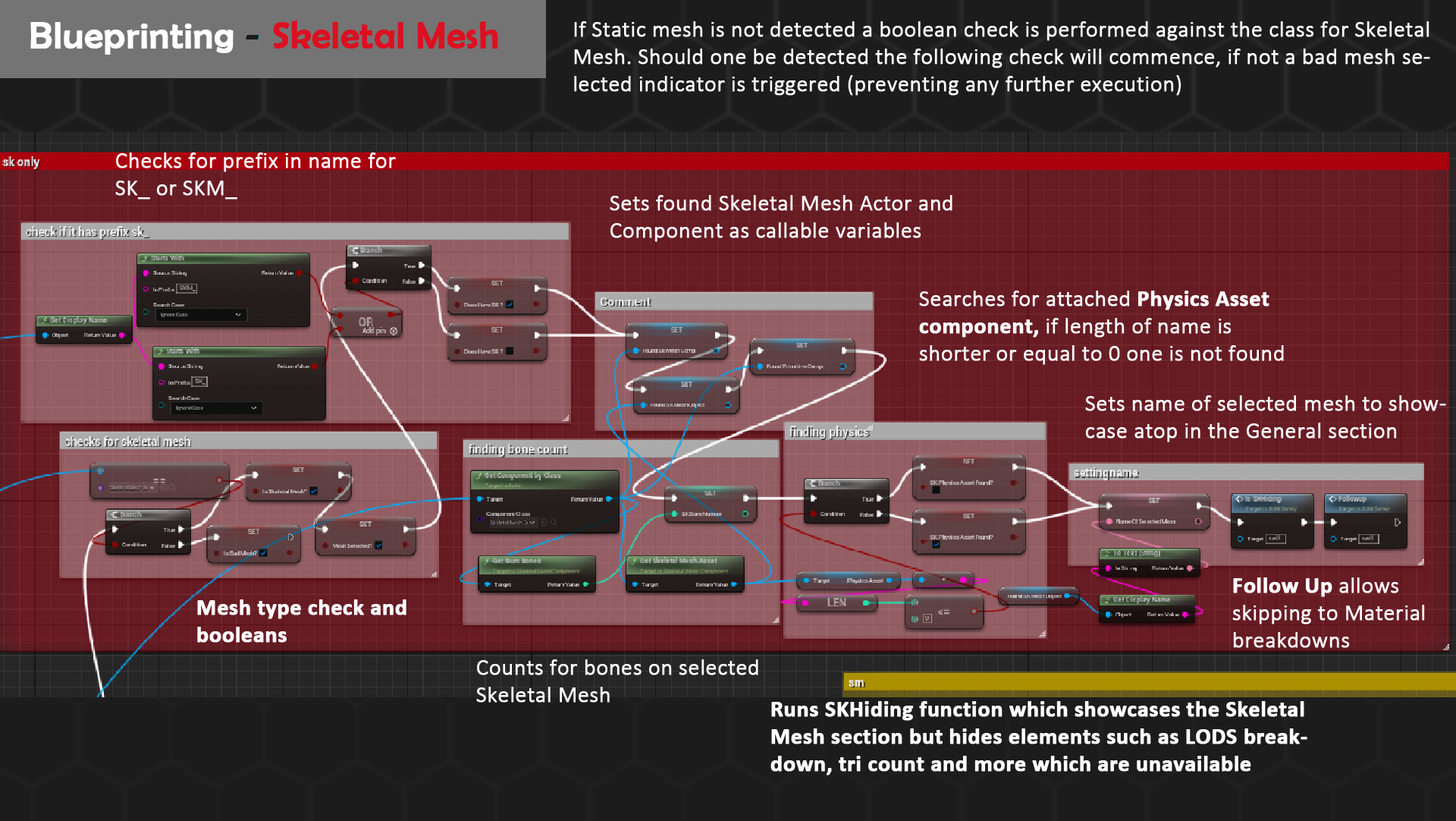
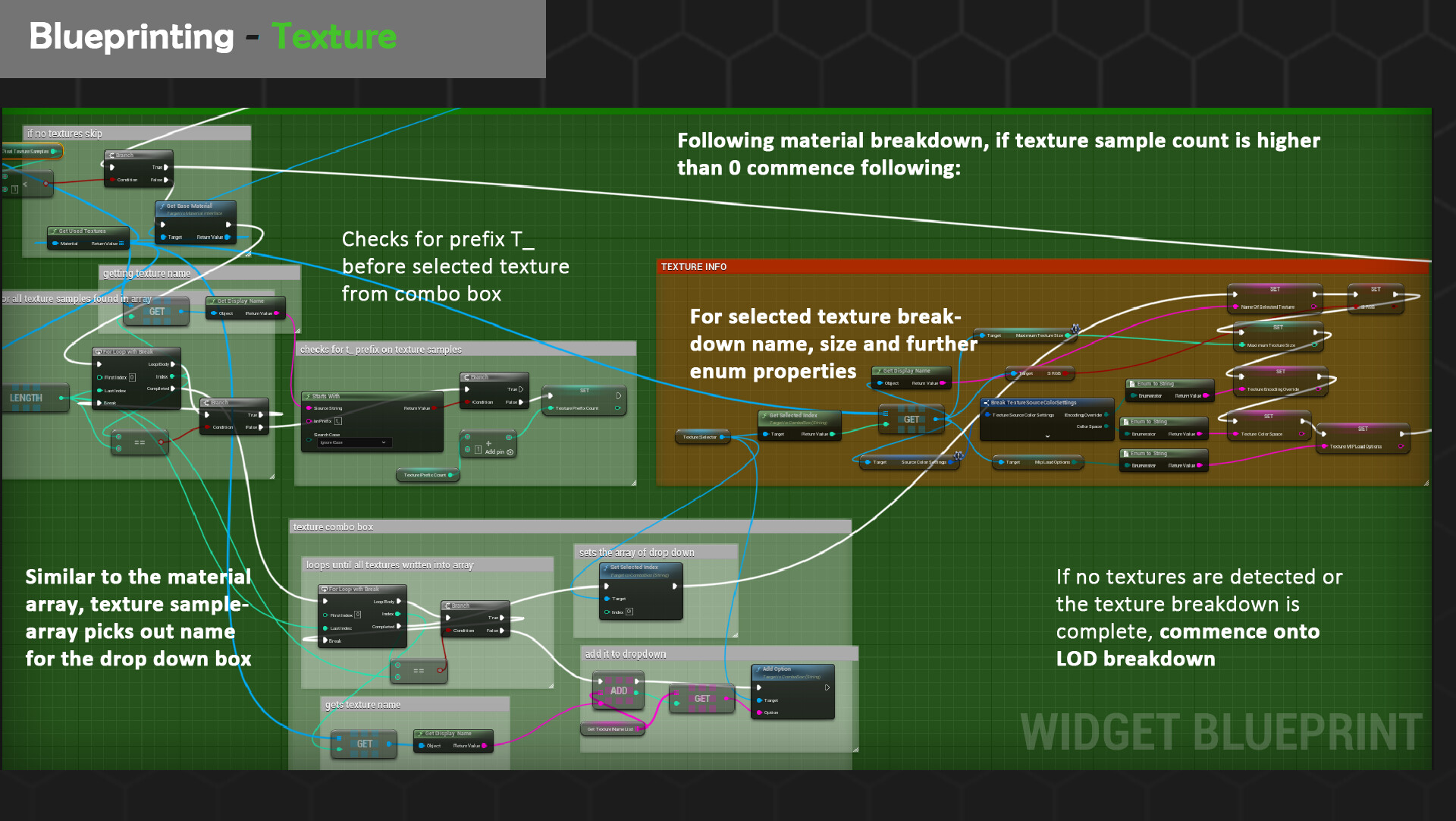
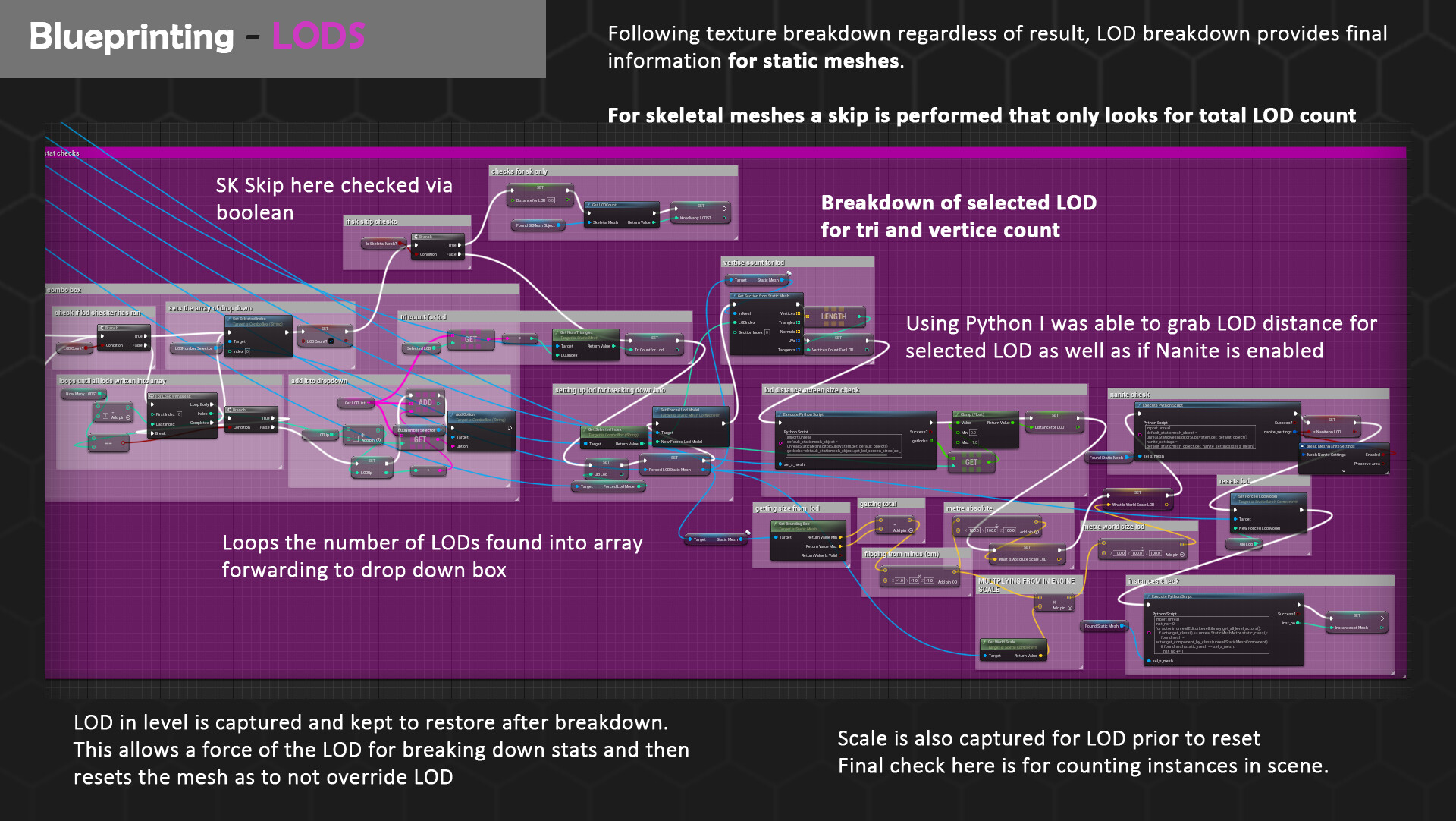
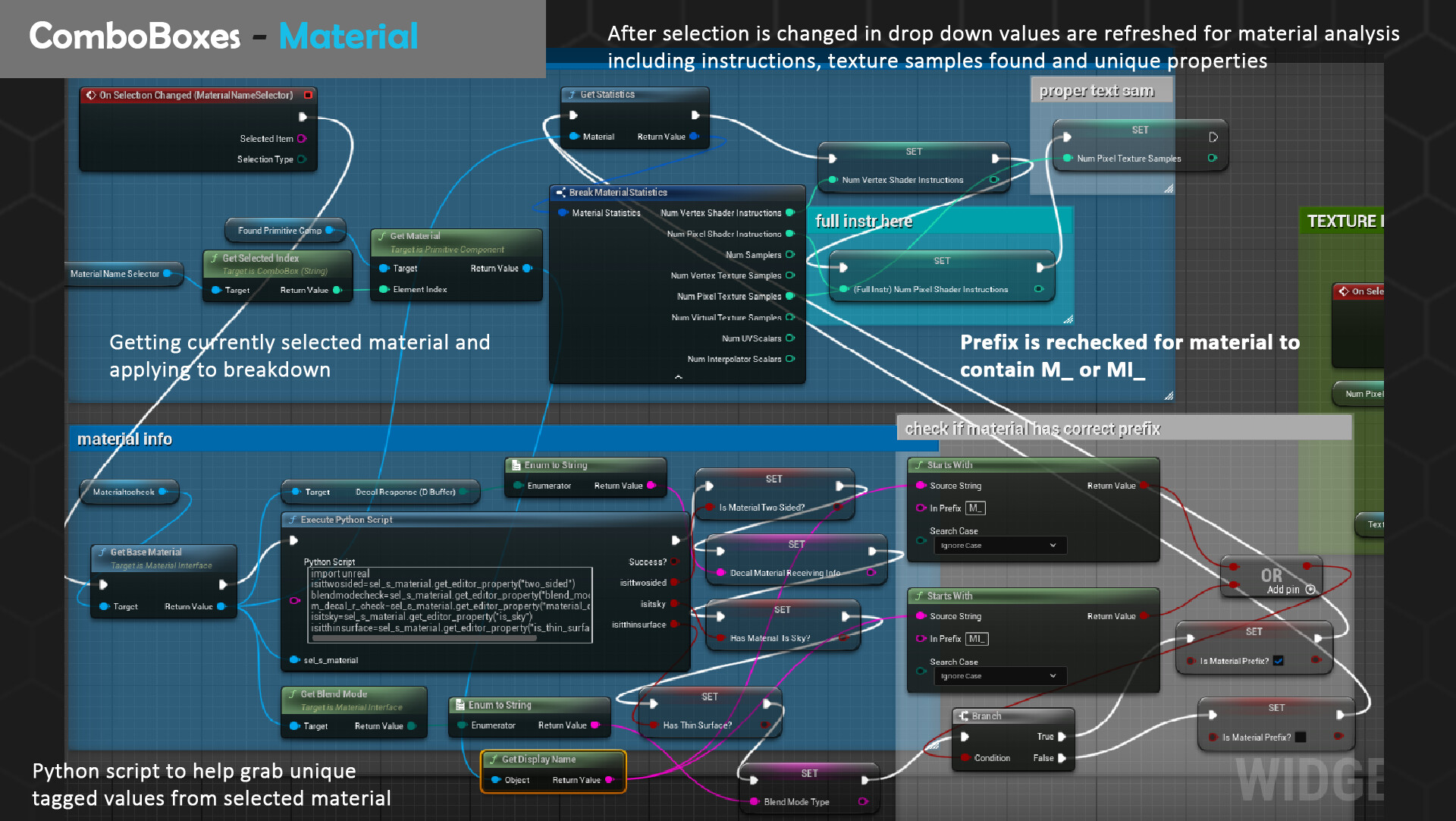
If you like what your read be sure to checkout B3NNY! My self-contained data asset fetching script that helps provide a useful visual breakdown of both static and skeletal meshes! https://www.artstation.com/artwork/yDwYzO


 I created a quick sketchover to better visualise where the points need to appear ontop of my first set of islands. This helped me troubleshoot where I needed extra logic to get rid of spawn points e.g. a group comparison of points intersecting the water plane to spawn lilypads. This automatically removed the points if water was switched off as none would overlap.