Sky Island Generator Project Breakdown

Making Of / 02 April 2026

This post is a cross-post from my website blog, for more project breakdowns do pop over to my main website: https://www.jolchawa.site/


Introduction

Hello there welcome to my post about my craziest procedural generator yet! Inspired by Zelda Tears of the Kingdom presenting; Seasonal Sky Island Generator. In this post I put my Houdini skills to the test to create a dynamic island generator that covers island creation and placement and dives into the breakdown behind it.

Tool Origins

This tool was built because of my recent explorations into raymarching with clouds. I figured it would be fun to have islands accompanying the clouds and overall, a more completed scene to test out profiling my results. I also really loved Zelda Tears of the Kingdom and wanted to match that whimsical vibe.

Tool Development:

Development was a bit slower than anticipated with my planning due to my lecturing job taking up the majority of the week. However I made quick progress on weekends, focusing on creating the rocky structure and shaders side by side. I got some useful feedback from peers to reduce noise on the top and focus on buffing out the edges of the top face generation which helped it match the Zelda sky island more in design.

Spawning Set Dressing Rules:

I created a quick sketchover to better visualise where the points need to appear ontop of my first set of islands. This helped me troubleshoot where I needed extra logic to get rid of spawn points e.g. a group comparison of points intersecting the water plane to spawn lilypads. This automatically removed the points if water was switched off as none would overlap.

Seasons Mockup:

I studied the islands from Zelda TOTK and simplified the weathering effects that occur to work with my existing shaders. I did some simple paintovers in Photoshop to better fit the new rules of what had to be swapped out e.g. water becomes frozen in the winter variant or flowers should spawn in summer/spring.

Houdini Breakdown:

This video goes over the complete graph and explains the why behind the nodes I used to make the final island result. I highly recommend watching it before continuing.


Mesh Shaders for Unreal Engine

For the stone, I used vertex data baked from concavity, thickness and ambient occlusion in Houdini that was stored in the RGB channels. This allowed easy adjustment for colour variations in crevices and edge information.

As for general noise I used a tileable to create a result similar to Zelda Tears of the Kingdom with the exception of detailed normals for easier shading.

The water I experimented with using the opaque but still convincing single layer water blend mode in Unreal Engine as I knew I would have alpha overdraw on the lily pads that would spawn. By having an opaque material this reduced the result. The ice shader is very similar to my flat ice one created as part of my shader museum here: Shader Museum

As for the grass I wanted to use Runtime Virtual Textures (RVTS) to drive the colour however encountered a problem that when generating geometry as an HDA, the runtime switch would not toggle and would need to be manually adjusted. This made the grass spawn as black so I used an if node to have it fall back on a set colour if it could not find a VRT texture.

Bugs and Problem Solving:

There was a lot of bugs especially once converting my subnet into a HDA and dragging it into Unreal. References initially broke however I was easily able to fix it by exposing the string parameters. Some shaders broke due to UVS which I was able to fix by returning back to texture coordinate rather than texture bomb. I also changed how the waterfall generated as the original outputs made it generate from inside the water spawn point, but this caused too many issues with it weirdly looking like it came out of nowhere. The thickness changed too as panning around the island would make the water disappear due to its thinness which was unlike what I envisioned the game style to be able to do.

Instancing and Memory Profiling

As I was testing the execution of the HDA I noticed that each island ended up taking up a lot of memory and causing slowdown in large clusters. I used Unreal’s profiling tools to figure out the root cause, which ended up being mesh cost. Originally my generators would place meshes from a location on disk as this would allow me to swap out models easily and preview them in the viewport of Houdini. However, in engine the final models would get combined into one big unique final mesh, causing issues when lodding and bloating the memory cost. In total my islands took up 500 megs of memory for the static mesh cache alone which was insane, I knew that Unreal has fantastic instancing capabilities so I swapped out the mesh placement for my grass with an instance attribute that would call to the reference in the project. This created significant savings as the total memory cost of an island went down to around 90 megs. I repeated this for my foliage and rocks. One weird quirk I did notice was that the foliage instancing in particular had to have a separate output as merging them would confuse the foliage actor. During baking the data would also need to be deleted if undesired in the viewport at times. However, minus these weird quirks the performance boost was great when loading into a level full of islands. I know for further optimisation during runtime, LODS of the islands can bring down cost even further in geometry alongside mipmapping all the tiling textures to much lower resolution.

Project Reflection

Overall, this project was a lot of fun, and I have more confidence in visualising the process for creating various shapes in Houdini. Its also taught me how much math is involved in tech art, more than half of my logic relied on wrangles to get location data relying on radius data. I really love Houdibis detail panel you can just about translate any data across different graphs alongside into UE. The tool began as an investigation into raymarching which I did initially do but to be honest the majority of the original shader I had made was not created by me from scratch and so the project was less of a display of what I had learnt and more of what I could replicate. I still struggle to wrap my head around HLSL, but I will look into it in the future. Now the outcomes are made by me from scratch it gave me a great chance to combine all my favourite aspects of tech art, procedural tools and shaders! With Embark studios dropping their behind the scene breakdown of their chaos driven destructible house generator (check it out here) I will be moving into creating some buildings to learn more about that workflow. If I was to do this project again I would expose more parameters in the future about placement to allow overrides for artists to place trees and waterfalls where desired, however after generation this is still fully possible to do for more narrative driven set dressing. Stay tunes for more fun projects!

Bibliography

(HDRI) - Guest, J. (2025). Citrus Orchard Road (Pure Sky) HDRI • Poly Haven. [online] Poly Haven. Available at: https://polyhaven.com/a/citrus_orchard_road_puresky.

Lilypad’s - Quixel Bridge. “Rembrandt Water Lily.” Fab.com, 2024, www.fab.com/listings/96391dd8-2556-47cf-a3ff-de5634adf19d. Accessed 23 Dec. 2025.

Website Blocker using Python (Focus Booster)

General / 19 October 2025

Introduction:

Hello there! Most recently I have been having a hard time focusing whilst working from home. My home computer being both my work hub and my gateway into the deep webs of the internet (primarily YouTube with hour long documentaries on obscure vintage tech) has ended up making it difficult to focus back on work or personal projects. I've installed digital health blockers on my phone which has helped me get off of that, but the main issue remains, the PC is a hard battle of discipline that I am slowly losing.

I have tried extensions that block sites for a period of time, but I found them annoying to navigate and activate before I have had my coffee in the morning. They are also quite easy to switch off and only work on the browser the extensions are installed into. So I went looking for apps that can do what I need but found many to be paid/subscription based on Windows or worse require the internet to run which I found sketchy as all I wanted was a local way to block sites I've put in.

So, over the weekend I've written a script which can do all that. It's easy to use but requires to be ran as admin to take effect.

I am sharing it here to hope it can help someone else too!

The Guidelines:

When developing the script, I wanted it to not only work but also:

  • be easy to use.
  • be quick to run - one executable.
  • be reversable and easy to switch off.
  • track the minutes saved from doomscrolling.

Setup:

Disclaimer: This application is for Windows ONLY.

You can either paste the script from here into your Python terminal and run.

RUN AS ADMIN

Paste Bin Link: https://pastecode.io/s/p7e4pqwf

Ensure you started your terminal as administrator such as Visual Studio.

Or you can download the .zip from here and unzip it. Click the .exe to run inside the folder. RUN AS ADMIN

Zip Link: https://www.jolchawa.site/post/block-sites-with-python-productivity-script

Demo Video:

Here is a quick show of how it works, the blocking is global on the machine so no matter the browser the websites will no longer load. It may take some time to update on browsers such as Firefox so give it a minute or two and refresh as needed.


Start Guide:

Press the backup host file button to make a backup before you begin to block sites. This file contains data on how traffic is directed on your local machine so we need a backup copy in the event something goes wrong. In the event sites are not unblocking despite the button being pressed you can click the restore host button to restore everything to before you started to block. Changes can take a few minutes to work.

Adding Sites to the List:

The block list is a txt that contains all the sites loaded into the host file to block. This can be edited by the user by clicking on the button to find it then opening the file. The file is inside the installation directory and called block_list.txt. You can add a new website per line and save the file to be able to block those sites as well. You must reload the program for changes to take effect.

How it Works:

The script this builds upon is from is Patrick Loeber from Python Engineer.

Check out his site here for more great automation you can do with Python.

https://www.python-engineer.com/posts/website-blocker-in-python/

The script goes to the machines hosts folder and redirects traffic from those addresses to local host. The default local host address does not have a server connection (typically) so if loaded on a browser it shows a blank page. The unblocking process removes those sites from the file.

This script also keeps a counter keeps track of how long you have been blocking sites for and how many minutes you have saved by writing the minutes to the top of the block list file. The minutes saved data is read and returned every time the user unblocks the program and hits save minutes. The program must remain open to continue blocking. To check if the program is blocking the coloured box should shine green. If red the program is not blocking or has failed to do so.

Closing Notes:

This script has definitely helped me a lot already, I'm writing this blog post instead of watching another star trek next generation clips compilation after all! Discipline is important so let this tool help you reclaim your focus and put it into what really matters.


Convert Images with Python Script

General / 13 July 2025
This post reads better on my tech art blog!

Recently I've ran into a issue when using conversion sites to bulk convert a lot of my pictures to webp. Due to my large blogging habits I tend to run out of enough "credits" to convert the rest of all my pictures. Webp is a brilliant format, super optimised probably one of my top ones if I had a tier list (gif is number 1 moving funny images are hard to beat) so I made my own converter. It uses Python 3.11 but may run on lower versions too.

How the Script Looks


This script can:

  • Convert images solo or in bulk to desired format.
  • Auto prevents converting a image if it already matches the format.
  • Toggle on saving a folder to default selection to (useful on frequent conversions)

Theres two steps on getting it running: install PIL to your Python and paste my script into your Python terminal. 

Installing PIL:

If you're on Windows like me you can open up command prompt and type in.

pip install pillow

If you're not then I suggest heading over to this page for more info on installing Pillow PIL Fork.


Image Converter Script:

Now for my script, it uses TKinter for a GUI interface. I prefer visual widgets and tools so TKinter was perfect for my needs. 

Paste Script from Here


Demo Video:

Heres a video of using the script. I'm running Python inside Visual Studio Code as I prefer its syncing capabilities with Unreal Engine. 


Bibliography:

Useful links I used to build the tool and troubleshoot it.

Codecademy (2025). Getting Started with Image Processing in Python using Pillow. [online] Codecademy. Available at: https://www.codecademy.com/article/getting-started-with-image-processing-in-python-using-pillow.

Conyers, B. (2012). How to select a directory and store the location using tkinter in Python. [online] Stack Overflow. Available at: https://stackoverflow.com/questions/11295917/how-to-select-a-directory-and-store-the-location-using-tkinter-in-python.

GeeksforGeeks (2020). File Explorer in Python using Tkinter. [online] GeeksforGeeks. Available at: https://www.geeksforgeeks.org/python/file-explorer-in-python-using-tkinter/ [Accessed 12 Jul. 2025].

GeeksforGeeks (2021). Get Last N characters of a string Python. [online] GeeksforGeeks. Available at: https://www.geeksforgeeks.org/python/python-get-last-n-characters-of-a-string/ [Accessed 12 Jul. 2025].

TKDocs (2024). TkDocs Tutorial - Basic Widgets. [online] Tkdocs.com. Available at: https://tkdocs.com/tutorial/widgets.html#checkbutton [Accessed 12 Jul. 2025].

TKinter, J.W.L. updated T.G. started with (2022). Grid Layout Manager in Tkinter. [online] Python GUIs. Available at: https://www.pythonguis.com/tutorials/create-ui-with-tkinter-grid-layout-manager/.

TutorialPoint (n.d.). Python - Tkinter Checkbutton - Tutorialspoint. [online] www.tutorialspoint.com. Available at: https://www.tutorialspoint.com/python/tk_checkbutton.htm.

Ulhaq, M. (2012). How do I check if a directory exists in Python? [online] Stack Overflow. Available at: https://stackoverflow.com/questions/8933237/how-do-i-check-if-a-directory-exists-in-python.

Verma, A. (2019). Image Conversion (JPG ⇄ PNG/JPG ⇄ WEBP) with Python. [online] Medium. Available at: https://medium.com/@ajeet214/image-type-conversion-jpg-png-jpg-webp-png-webp-with-python-7d5df09394c9 [Accessed 12 Jul. 2025].

W3Schools (n.d.). Python - Global Variables. [online] www.w3schools.com. Available at: https://www.w3schools.com/python/python_variables_global.asp.

Pink Lady Diner - Blueprints & Shaders Breakdown

Making Of / 11 May 2024

What is this?

Checkout the Artstation post here!

This is a comprehensive breakdown of all blueprints and shaders utilised in the Pink Lady Diner. My project has a lot of components and I figured it would be worth breaking down for anybody wanting to achieve similar outcomes or troubleshoot similar logic. Plus, I just love talking about the diner so its another excuse to give it the breakdown it deserves.

Blueprints – The Wurlitzer 1015 Jukebox

The Wurlitzer 1015 jukebox by design has 3 key components; playing songs from an array of tracks, mechanically animate the playing of songs and have synced emissive lights/tubes that rotate a LED strip. And so, the cumulation of this all minus the material shaders here is what you see above, a massive graph with concise sectors that I will further breakdown below.

Misc Functions for Jukebox

For handling the point lights around the Wurlitzer alongside randomising song selection these two graphs handle the logic. For matching the light colour I’ve grabbed all the light components and using a timeline with slate colours, update the light colours as per the time. I’ve timed these changes to match the emissive panning material. As for the random song selection, I’ve utilised a random integer in range to grab a randomised track from the song array list. A Boolean check ensures once this is done the song can be rerandomized on a replay. There are 12 unique tracks possible to be played all themed to the 80s!

Scene Audio Controller

One large issue I ran into when making the jukebox was the clash of ambient audio vs the music played. By adding attenuation, you can ensure that songs only sound loud when played around the jukebox however any ambient music will still overlap in this zone. So, to fix this I created a simple audio controller that exists in scene, allowing the jukebox to call to it to quieten the ambient diner track when a song is played. Should the song finish early or naturally the controller will be updated using the function; make quiet.

Beginning Interaction - Jukebox

As the jukebox graph is quite dense, I have broken it into multiple breakdowns here, the first being the interact play sector. The jukebox has to detect the player and allow them to both play and quit the song at any moment. For optimisation I have used a gate to control these parameters as the blueprint will only begin to listen for further instructions should the gate be opened (by the player being there). The casting is to ensure that the player can use the interact event much rather than the Wurlitzer waiting for itself to cause this event. Following a successful interaction (pressing E key + player being in the collision box) the jukebox performs a self-check on Boolean values. If events such as randomisation for song have not occurred this action is performed, if set true then the value is reset for the next button press. Ambient audio control is used here too to ensure background noise is quietened for optimal listening.

Playing the Record Part 1

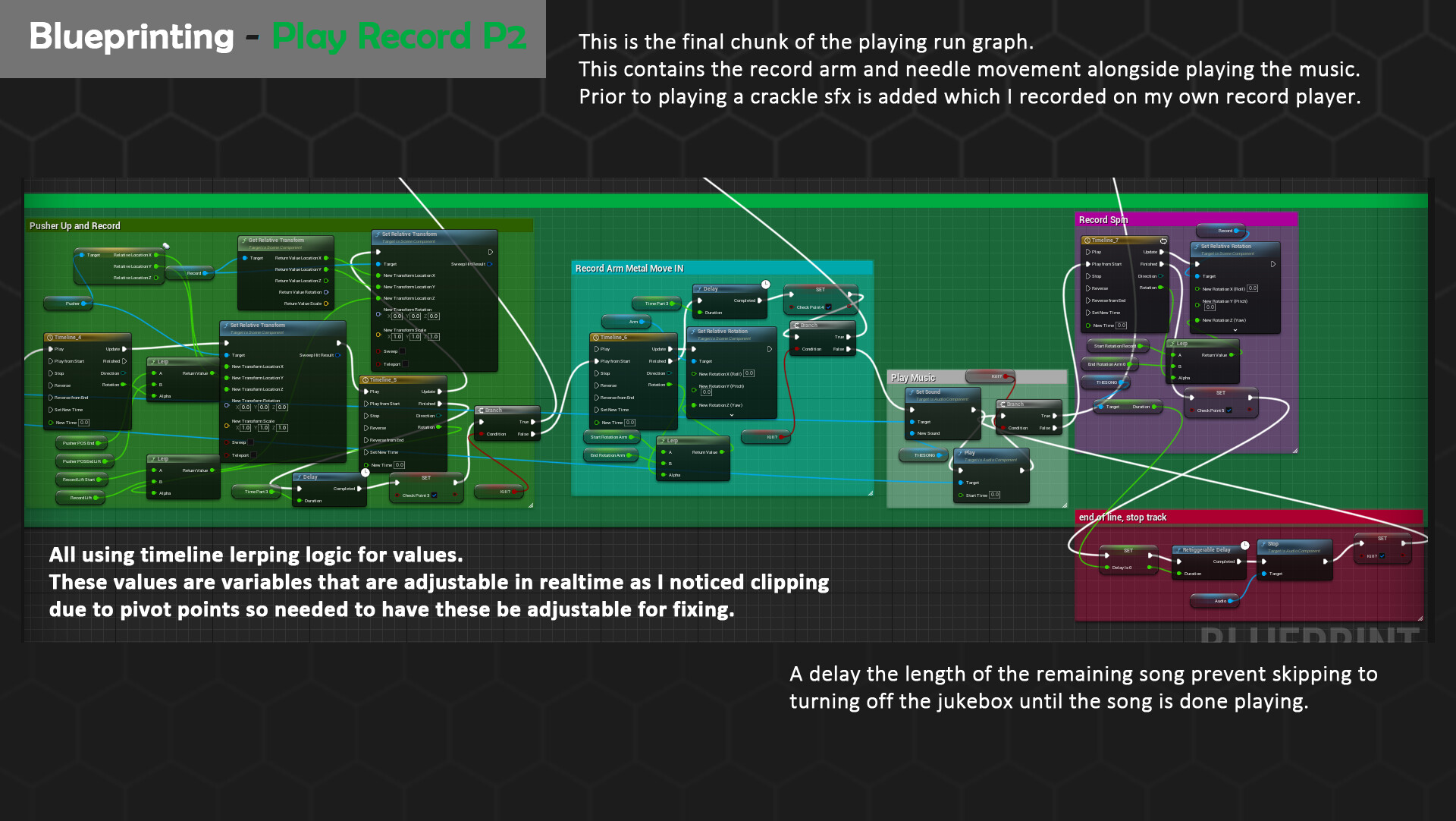
The play sequence occurs should the playing song value be false. This Boolean is set to true once commencing alongside setting the first sound for the audio player. This sound is not the song but a whirling ambient clicking noise I recorded off my own record player as the Wurlitzer is purely mechanical. I wanted to add a bit of believability and ensure the player has amped up expectations building up to the song. Following nodes execute motion on the Wurlitzers interior components. These all animate in varying degrees of motion either Y or Z by linear interpolating timelines. As I wasn’t fully sure what value they would have to stop at, I made them parameters to fine tune in engine. This proved useful as clipping was one of my largest problems initially in execution. Additional checkpoints exist, these being Boolean values that record at what state the animation is, to help provide an equal quit point. Looking back, I would change this from Boolean variables to a float that could be added and then checked if it aligns as it would cut down on having so many variables.

Playing the Record Part 2

The second half of the play sequence reuses a lot of logic from the first. In future iterations I would recommend copying these values to a function and ensure you can input the mesh, stop and start values to reuse the logic much easier. Nearing the end the ambient clicking and record sfx is replaced with the proper chosen random song. Play is the commence, delaying the quitting/kill sequence until the length is done. I Encountered one major issue using the timeline setup when quitting as the record (which loops a full rotation) could not be stopped looping. Skip to my Bugfix subsection to find out more on how I fixed this issue.

Stopping the Record Part 1

Going back to the start branches, should the jukebox be interacted with again to quit the song the kill Boolean will spawn as true. The branches now check which checkpoints have been used to roll back the animation from, reversing all the timelines. Should the jukebox be stopped mid play, the song will additional be cut prior to all these rollback animations triggering. As previously mentioned in the future I would opt to use a float value to keep track of the state of the jukebox mechanical means however at the time knew no better. These graphs mirror that of the play mode just in reverse order.

Stopping the Record Part 2

The main brains behind the reset of the jukebox are the section commented ended naturally. This connects both the end of the play mode and the general checkpoint system after all roll back animations are executed. By first resetting the delay set by the length of the song, the song is then stopped and replaced. I have a secondary sfx for what the record player sounds like lifting the vinyl off and this is also killed here after execution nearing the start of the graphs.

Fixing Bugs!

One large problem I encountered I lovingly dubbed the floating vinyl bug is right as it says on the tin. Due to the timeline being set to loop, unlike the other timelines the animation never stopped updating. Even after not being called or executed to, after the vinyl was told to stop to start rollback animations it would continue floating + spinning. To fix this I cleaned up two sections, the first being the timeline. I added additional branches that use Booleans I already created for checking if a song is playing or if the kill sequence is activated to prevent setting the rotation if these are set on. This resolved the rotation issue however I soon realised a huge delay in cutting the song played, meaning the track would be back in the arm hold but cut there. This was due to a lot of unnecessary delays that I deleted and cleaned up the command. I also had a poor order of execution meaning it delayed prior to stopping the song causing the bug. Now all was right again.

Points of Reflection - Jukebox:

Overall, the jukebox is still the smartest blueprint I have cooked up however it does have its limitations and optimisation considerations. The first being a lot more functions to cut down on unique timelines + variables. The second being the sheer number of Boolean checks that are unnecessary for my checkpoint system should I have implanted a float counter instead. And the final consideration is cutting out the middleman of timelines altogether and using other means of linear interpolation over time. I feel that the performance impact it has with such a complex element that is only using a singular track could be vastly improved and I will be looking into more options in the future to implement such changes. However, looking ahead, I have never been more motivated for building on this logic to make more diverse systems. Speaking of more systems, this blueprint is only the cherry on top of the cake that is the rest of this post so strap in for everything else this interactive rock and roll diner has instore!

More Blueprints!

Clock

This clock blueprint is a much more simplified logic of the jukeboxes mechanical arm animations. However, in tune with how real-life clocks work I wanted to ensure that every single instance had a randomised position of the second hand, meaning they were all out of sync. A little detail that was executed with a function to set the random position at the start of the game and continue animating throughout the diner playtime.

Splines

Splines are elements I heavily utilised in the diner as there were so many elements that horizontally tiled. These being bunting, neon strips, exterior pavement, powerlines, and cables. For the bulk of the blueprint, I utilised this main base of logic to provide randomisation of the meshes in an array (e.g. bunting) or singular placement across a strip (e.g. neon). All logic occurs in construction as there is no need for these values to change in real time. Following on the loop is executed for all sectors of the spline, meaning that the correct chosen mesh is added. To help with deformation round corners I utilised tangents and location distance to breakup any overlap on the spline. Generally, a long graph that I strongly believe I can optimise further by copying subsections regarding tangent and location distance calls to the same variables, cutting down the get node.

Physics Part 1

Big thanks to Max Ryan for help setting this up! One of the most fun elements of the diner thus far is the physics elements that allow you to throw chairs, plates, cups like a thrashing greaser teen in the 80s. For implementing this logic, I built on top of the standard first-person controller script as I needed to utilise the cameras instructions surrounding line tracing. Objects are line traced and checked for if they can be picked up, alongside if the Boolean for an object has been triggered for having collected an object already. If no objects are picked up, and the object has a suitable physics asset to interact with it is then grabbed for location data. Following this every frame the location is updated with the first-person controllers one to maintain a grip on it. Should the pickup button be triggered again the release branch will play instead allowing releasing the physics component. Whilst a bit expensive it proves a very fun system to play around with, ensuring interactable meshes are both set to moveable and have physics enabled.

Physics Part 2

But that’s not all there’s more commands I added to the first-person controller to help make the scene easier to navigate and focus on objects. Zooming and crouching were easy to build in by setting an interaction key and lerping the placement or field of view for the camera. If you have an object picked up, I also implemented a scroll wheel sandbox like function to help, bring it closer or further away to yourself through two functions adjusting its position. Looking back on this graph there are limitations when interacting with larger objects as they may go out of frame due to their scale on the scroll function so I would recommend grabbing the bounding box of the mesh and using that scale to figure out how close it comes up to the camera rather than hardcore values.

Doors and Cupboards

What’s a diner without doors and cupboards stocked full of goodies right from the 80s. I knew I wanted to show off all the hardcore research I did to getting era accurate packaging, so cupboard/floor doors have the ability to be opened. General detection and door movable graph included pressing the interact key and animation its pivot point based on a flip flop node. Flip flop nodes are brilliant as it will remember what position it was in prior meaning you don’t need a Boolean for this. However, for cupboards I did want to limit some to be locked, especially corner clippable ones so I added a bit more logic. If the exposed Boolean for can be opened is set to false text will not only be added to tell the player the box is shut, however a short wiggle will occur on the pivot of the door. Most important elements for this blueprint are ensuring the pivot of the mesh itself is aligned to where hinges are modelled, or else animation will rotate on the centre providing an unnatural swing.

Material Shaders – 

My diner also had a lot of complex materials to help bring it to life and make the most out of my modular meshes + textures. Here’s all their shader logic broken down too.

Shaders – Glass:

Big thanks to Nina Klos for helping with this one! This glass shader works by utilising a Fresnel to help create a sharp glint at corners + edges. Alongside this the refraction index is set the normalised glass value meaning the behaviour of distortion will be alike with real glass. The cherry on top is the tint that is applied with a thin translucent material and plugs into the colour allowing a breakup in the materials general colour if plugged in. I also have an additional roughness control for tiling wear maps that I ended up not using but kept just in case.

Shaders – Wurlitzer 1015:

My jukebox isn’t just all blueprints this brilliant piece of ancient tech is also packed with 2 unique shaders to help animate those tubes. I watched countless videos on how it works internally to figure it out and the real thing proves to be extremely clever. For the large tubes that swap colours in real time the tubes rotate inside a thin piece of colour film that then is blasted with light, allowing that distinct cut fade. I replicated this behaviour by panning an additional emissive map downwards and by ensuring the unwrap for the tubes were horizontal. Duplicating the uvs allowed me to sync up the timing for these fades starting from the centre and fading out. The secondary material being the bubbler tubes that rely mainly on panning normal. I made an extra normal map that is blended together after being panned vertically to help flow up and down the tube. Whilst a small micro detail I wanted to add it as it adds another fun detail to spot during playtime. For real life the jukebox would heat up the bubble tubes causing them to flow up and internally pop due to the unique boiling point of the liquid. My normal pan the same direction however do not thermally combust.

Shaders – Master Material

To help with texture adjustments in engine I always employ creating a master material at the beginning of a project. The following is rather simple but provides ample adjustable parameters for the channel packed maps and the ability to cut out masking. My primary problem I encountered with this approach was that shader costs exponentially increased when enabling varying render methods e.g. translucency, two sided etc. To prevent a chair having to render this setting, once I made a good base master material, I duplicated the material to create variants with these settings applied. This made the instances on top of them more optimised in the long run.

Shaders – World Dirt using World Position

Being a diner, I knew grit and grime would scale up on just about anything that touches the ground. So, I added a world position mask that uses the blue channel (Z) to fade a noise of dirt onto meshes. The texture of this noise can be adjusted alongside intensity + colour in game. Due to using a world position node I knew I didn’t want to add this to my main master material as it would explode cost over every single asset hence it being a separate material to begin with.

Shaders – Flag and Wind WPO Movement

Having used cloth a lot in the past I knew that the smoothness of folds simulating was widely limited on the vertex count of the mesh. Which makes sense, it does have to move however not very game friendly to have an expensive flag plane, so I opted to use a material to animate micro movements. I used pre-existing panning noise from the simple grass wind and clamped these values alongside a gradient that scaled across the planes top and bottom sides. This helped focus the noise in a more uniform box that acts quite well to make the mesh look denser than it really is in the final simulated wind.

Shaders – Decal UV Atlas

Due to the sheer volume of decals I needed to make for table numbers I opted to have them all packed tight onto one sheet and simply scroll the UVS per instance to ensure the correct one is selected. This simple material provides that alongside having packed a roughness map into the normal to save on additional draw calls. In future shaders I would automate this to a value generated based on object position or that can be incrementally scaled via float parameter. As instances of the decal atlas require manual scroll adjustments which is finer control at the cost of a more time-consuming setup. Fortunately, due to how the UVS are packed the value to scroll between numbers is hardest per row and predictable, more reasons to be able to setup a more automated approach that I will explore in future shaders.

Shaders – Ceramic Emissive Lights

The lights I wanted to create proved to be a challenge due to the material it was made from, ceramic thickened glass. In real life the ceramic means the bulb inside creates a nice, softened glow alongside the thinnest points e.g. the edges and inside. I decide to use subsurface scattering which is commonly used in skin and foliage to achieve this affect alongside a channel packed thickness map to ensure more controller on the edges of the emissive. The result whilst easily overclocked at a good midtone value creates a smooth orangey glow.

Shaders – Exterior Foliage

All foliage in the scene is outside meaning I can drop costs for texture quality down. However, being grass in the deserted state of Nevada I decided to still implement typical grass wind movement that is clamped via a world position node to the ground. Additionally, I created a subsurface for the node by reusing the base colour map, hue shifting and lightning the result with multiply to help cut down on texture costs.

Controlling Time of Day

With an abundance of great neon and fun lights to play around I duplicated my final daytime scene twice more and lit it in a more morning + nighttime variant. To showcase these during playtime I created a simple graph that exists within the first-person controller that loads levels based on pressing a number between 1-3. As for optimisation level setup and reset once its built, I also included additional quit and reset keys using the same logic. These proved extremely useful during degree show as individuals playing the level could refresh the game and play from the start without shutting down the game.

Summary:

In conclusion I hope this documentation provides useful insights to building your own shaders and blueprints. There is no right or wrong way to build these elements however optimisation is key so elements to consider should you replicate this logic is: how many Booleans do you really need, channel pack as much as possible for textures and keep meshes static unless animated. 

If you like what your read be sure to checkout B3NNY! My self-contained data asset fetching script that helps provide a useful visual breakdown of both static and skeletal meshes! https://www.artstation.com/artwork/yDwYzO


Making A Data Fetching Utility Editor Widget - UE5 + Python

Making Of / 06 May 2024

B3nny - Fetch Utility Editor Widget

A data fetcher script for quick read only breakdowns of selected assets in the level. To be used with conjunction with audit tools to help troubleshoot issues or look at data in a drop down collected format.

What can it do?

  • General - naming conventions for static meshes, skeletal meshes, materials and textures. Collision detection, nanite enabled checker, texel density readout and instance in scene counter.
  • Mesh Stats - tri count, vertices count, size measuring for original and in level mesh. Comparison of scale, advanced breakdown of same mesh info for lods. Total Lod counter, nanite checker and screen size display for each lod.
  • Material statistics - number of materials, counter of empty material slots, instruction breakdown cost for pixel and vertex (with cost colour grade). Additional material info: blend mode, decal material info, two side check, thin surface check, is sky check and total texture sample count.
  • Texture - total textures found in material, texture inspection for SRGB, colour space and encoding options.
  • Skeletal Mesh Only - bone counter and physics asset locater.
  • Sleek Design - Collapsable menus, informative tooltips and scroll bar. Sections are sensitive to selected mesh type and will hide if no data is available e.g. skeletal mesh tab for static mesh.
  • Entirely self-contained – only 1 asset to migrate between projects with prerequisite of python plugin. Read only ensures no data is tampered with and higher performance.

Making the Widget

Script Concept – Goals and Inspirations

I originally designed Benny for the need to fetch texel density data. I soon realised that there was a lot more useful data that could be fetched too for displaying for artists and optimisation alike. So, I laid out more ground rules to ensure the project doesn’t spiral out of scope. These being:

  • Widget is Read Only – as this widget would like at a variety of data from naming conventions to shader values, I did not want to risk it overwriting values/breaking up references. So, for now Benny is read only.
  • Self-Containment – I didn’t want to have to make migration a hassle between projects by adding fonts, varying sprites and more assets that the widget would call on to run.
  • Make it fetch texel density and prefixes correctly! – above all else these are the most important pieces of data I and many artists like to check when building 3D scenes as such I need to ensure that its accurate + fast.

Nearer the end of the project, I go over how well I went to achieve these outcomes including enlisting the Python plugin to help grab additional data.

Breakdown UI – Referencing Blender

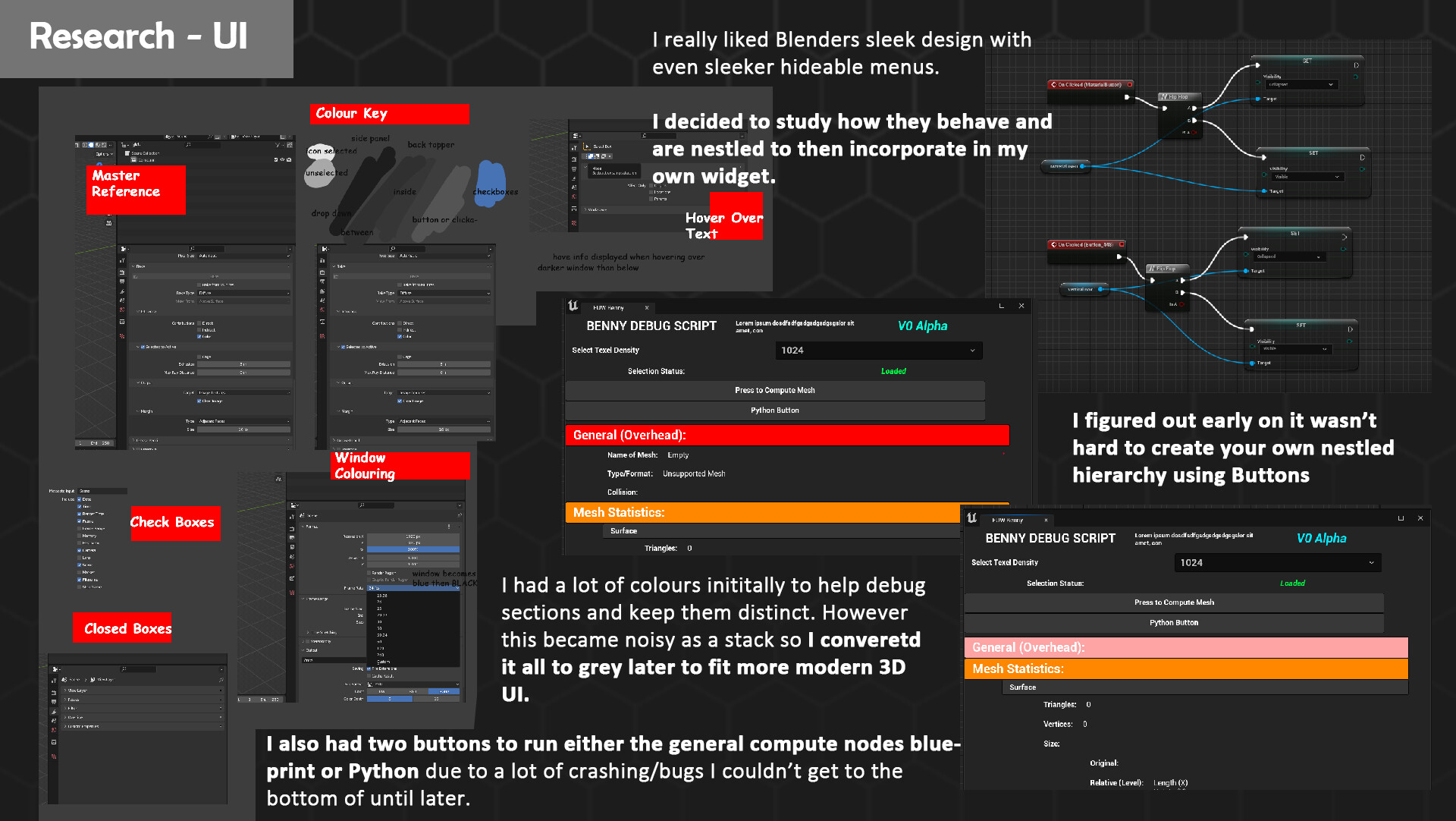
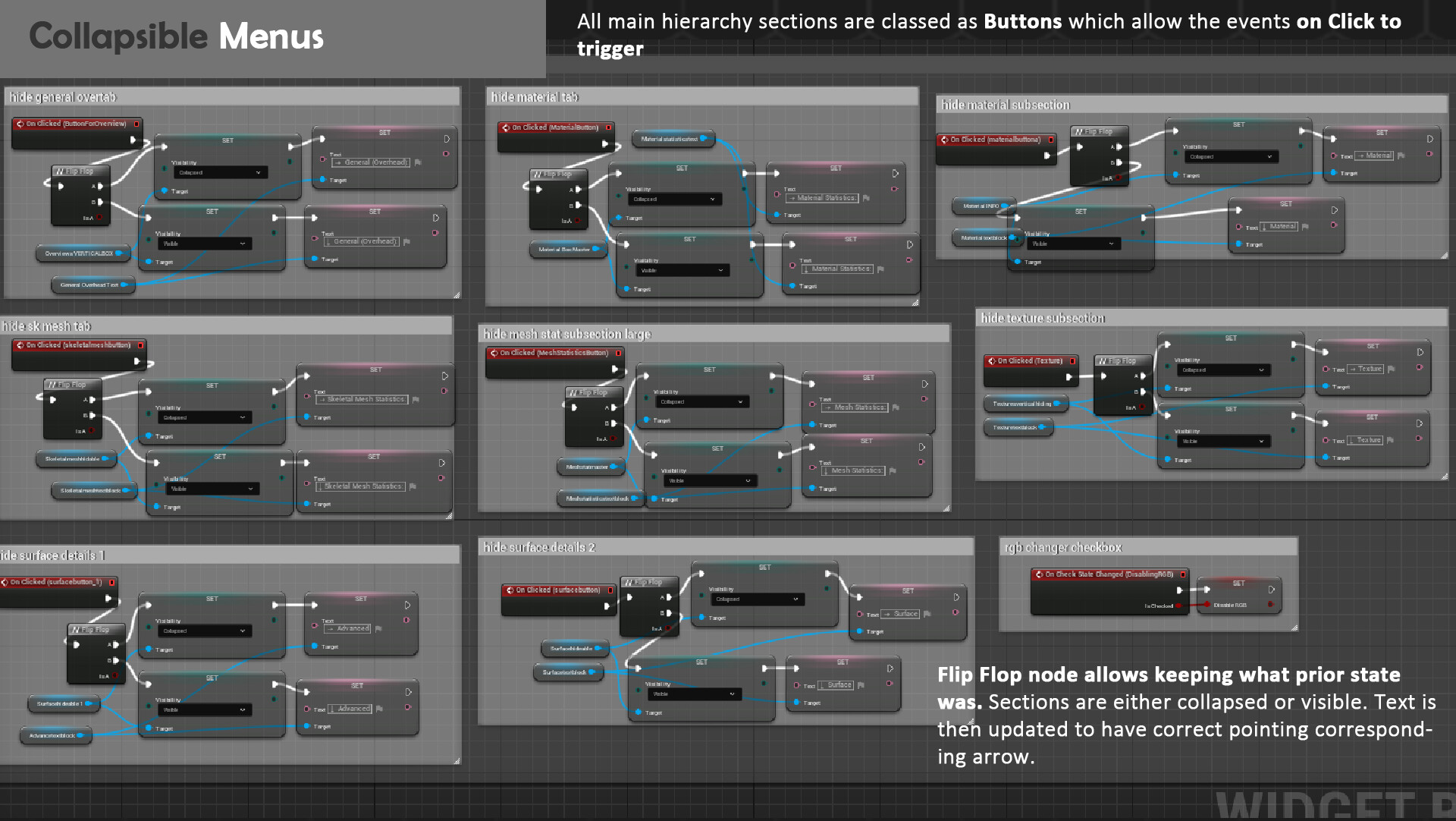
Whilst I drafted up a list of variables earlier, I realised I needed an easier + intuitive manner to display the data. Since there was a lot of data at hand clarity was important and so I went comparing UI in varying 3D programs. My favourite ended up being Blender as the design was carefully crafted to be an ease on the eyes colour wise and employed a lot of nesting tree views to keep elements accessible. I loved the idea of collapsing parts you wouldn’t want to look at, so I went to draft this out in UE. I came across an option in the editor utility widget designer called Tree_View that I ended up not using due to the manner it used additional widgets to setup a working script. I hated the concept of spreading my blueprint around more files and knew this would violate one of my main design goals, so I ended up creating my own collapsing system that uses buttons for headers and sections.

Further Development of Nesting

On click the nodes flip flop between being hidden or visible which keeps their orientation despite computing. For debugging means I also had my blueprint computing node button and python separate at early stages to help troubleshoot issues easier. You may notice a splash of colour too on my headers, this soon was removed as it became super bright and difficult to read in contrast the grey. For sub menus my friend Ajay Hiser helped to group to data via closer knit sections that made more sense than my initial rough overdraw view.

Final UI & Widget View

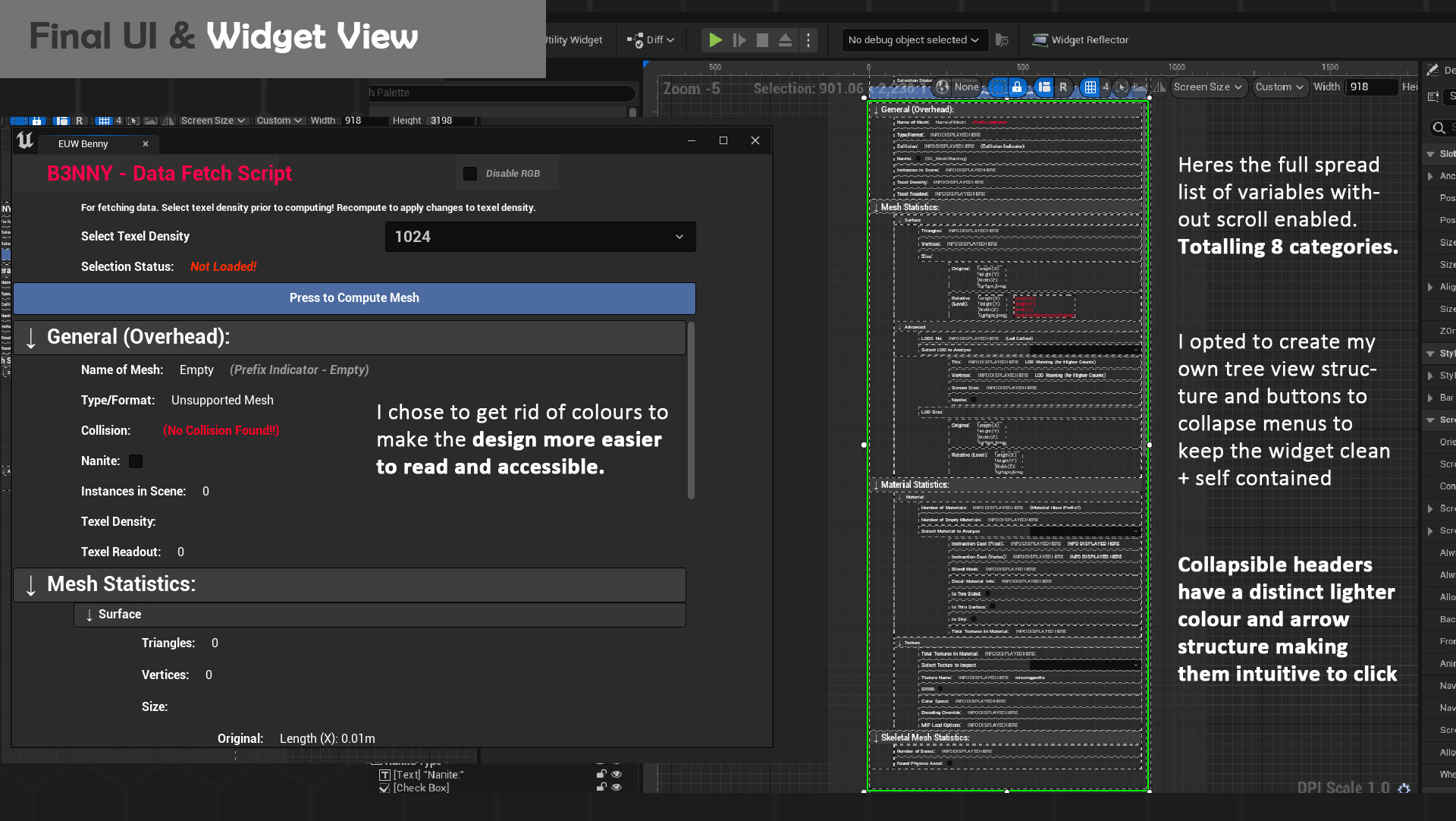
Here is the current finalised widget view. With a sleek grey layout and lighter headers all data is readable. You can even disable the RGB flashing title if it proves too distracting, but I have left it in for a fun little element of design. There are 8 collapsable menus to help keep data clean and if a user computed a static mesh element or skeletal mesh + vice versa and hidden. All data calculation occurs on the compute button, so the strain isn’t too performance intensive during runtime as nothing is constantly checked. A lot of additional branches have also been provided to skip data fetching as necessary if elements such as materials/textures are empty as you will see next up.

Full Look at the Event Graph:

Here’s the entire event graph in its glory. I will begin to break down all the logic below section by section so buckle up!

Blueprinting – Start of Compute

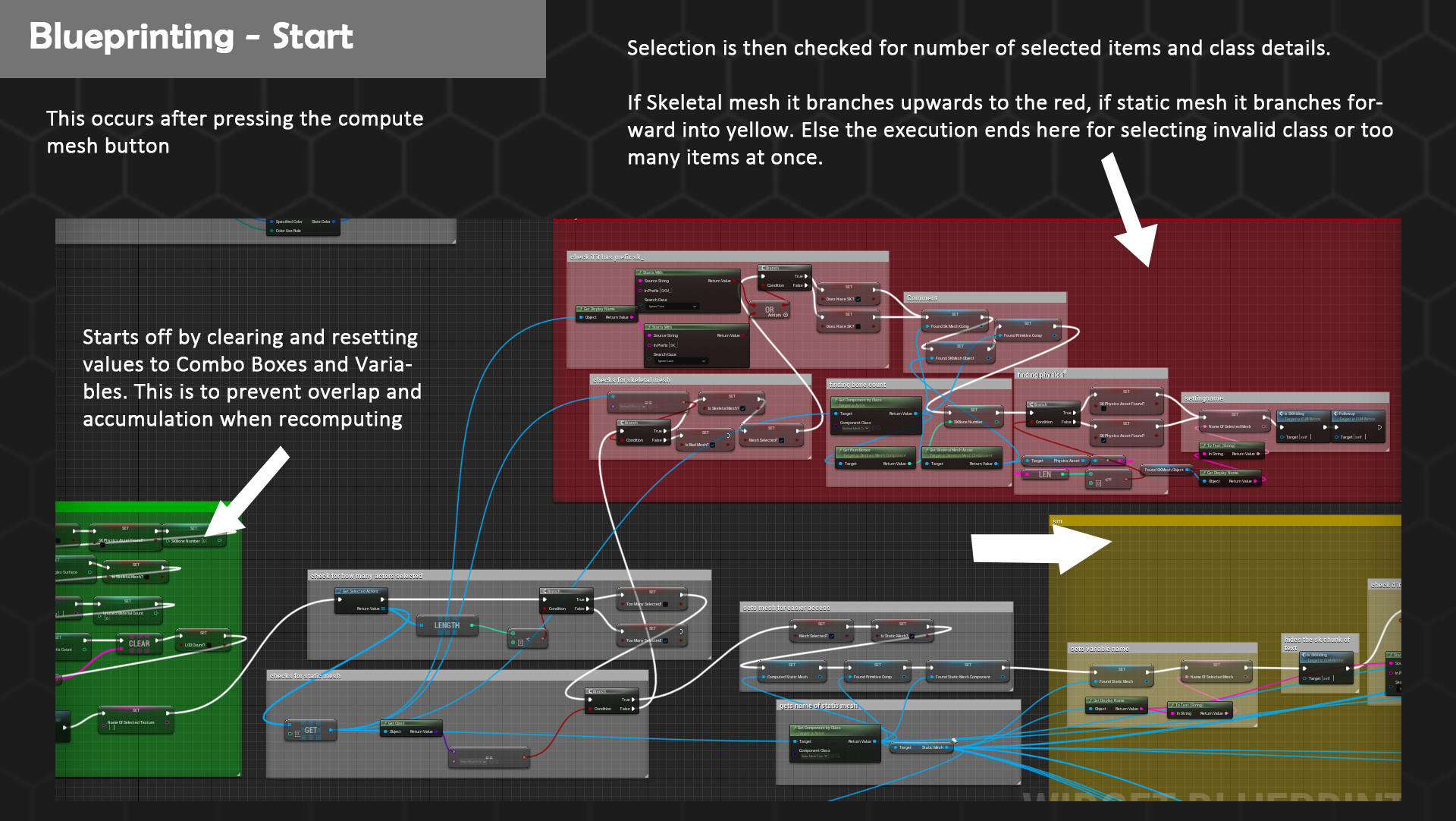
My graphs first go run a clearing mode where data is wiped from combo boxes, Booleans are reset, and arrays are cleaned too. This is due to some bugs during testing where if a manual wipe isn’t done at the beginning data would be added onto resulting in materials appearing across meshes that don’t have them if I compute two different targets. First, it’s important to determine that only one object is selected. I used a get selection node that counts the length to check that the number is no bigger than 1. Feeding a Boolean that is triggered preventing execution should this occur to be true. Following this the main selection checker occurs. By getting the selected objects class you can determine whether the execution will continue on the static mesh, skeletal mesh or bad mesh pipeline.

Blueprinting – Static Mesh

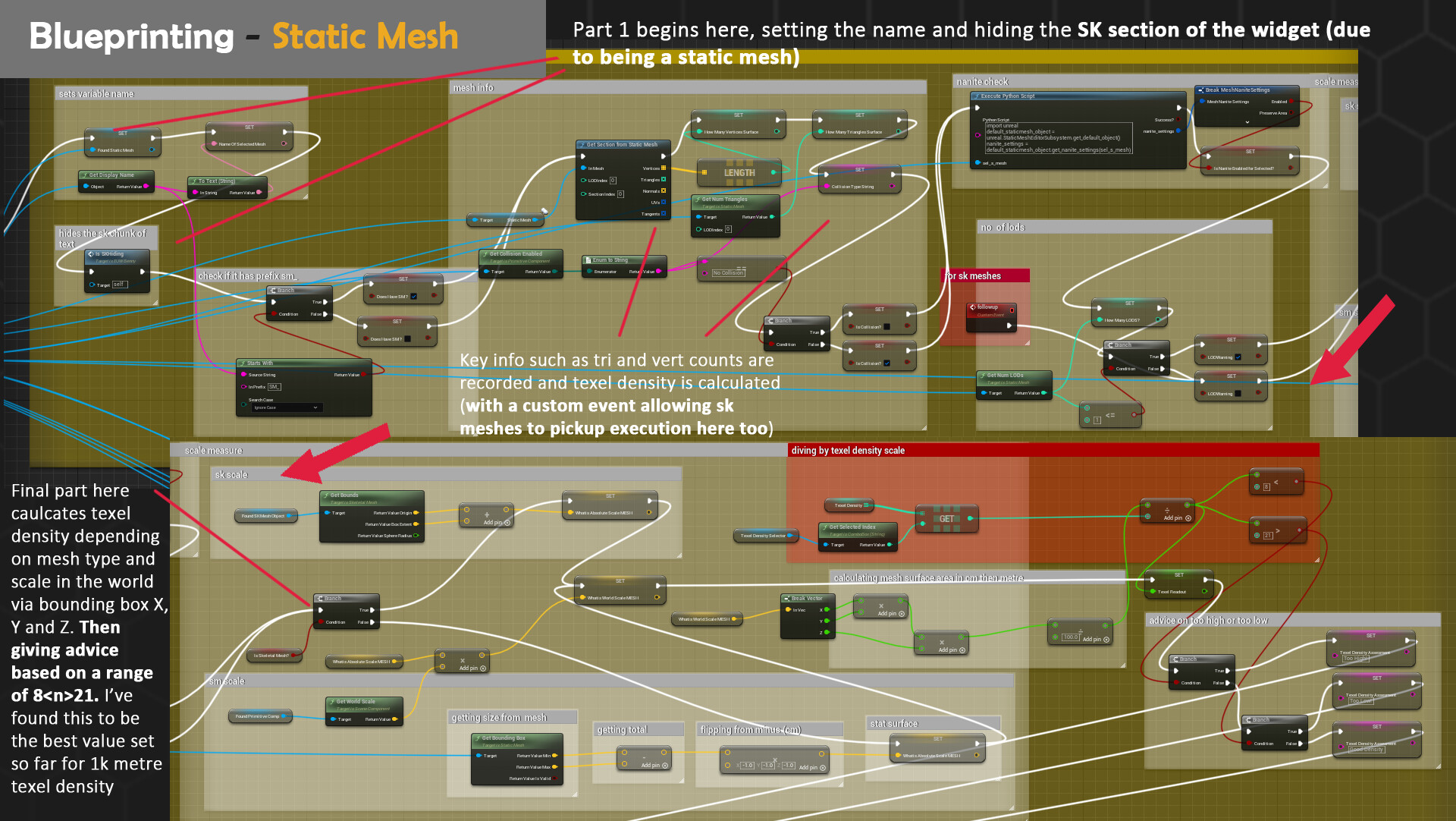
If the class is determined to be true for static mesh, we then look for prefix data. By checking the start of the display name, we can determine if there is a sm_ present. If not, a Boolean flag is triggered that then allows text to be flagged on the UI that no prefixes were found. Following on more important data is collected regarding the tri count, vertices and lod by using a get section mode. You may also notice a couple of set nodes; these allow me to reuse the call for this mesh in varying points of the graph for nicer housekeeping/cleanliness of lines. However, it also allows further on categories that only use primitive components such as get material and texture to not have to be doubled to account for skeletal mesh or static mesh variants. Moving on texel density is calculate through the world scale of the object being compared against the chosen density from the texel dropdown. I use the equation: (world scale surface area ÷100) ÷texel density=density ratio per metre. I then compare this value 821 for how high or low the ratio is. If the ratio is lower than means the map selected is too high, if the ratio is higher that means the map selected is too small. Between that value is good texel density for 1024 per metre which is standard. I tested this formula and tweaked results using the Unreal Engine cube and varying meshes. I may add a toggleable changer if you want lower or higher density however due to performance and visuals 1024 is industry standard for most games. 

If you want to read more about texel density I highly recommend checking out Beyond Extents breakdown and math as the post heavily influenced how I constructed my blueprint: https://www.beyondextent.com/deep-dives/deepdive-texeldensity

Blueprinting – Materials

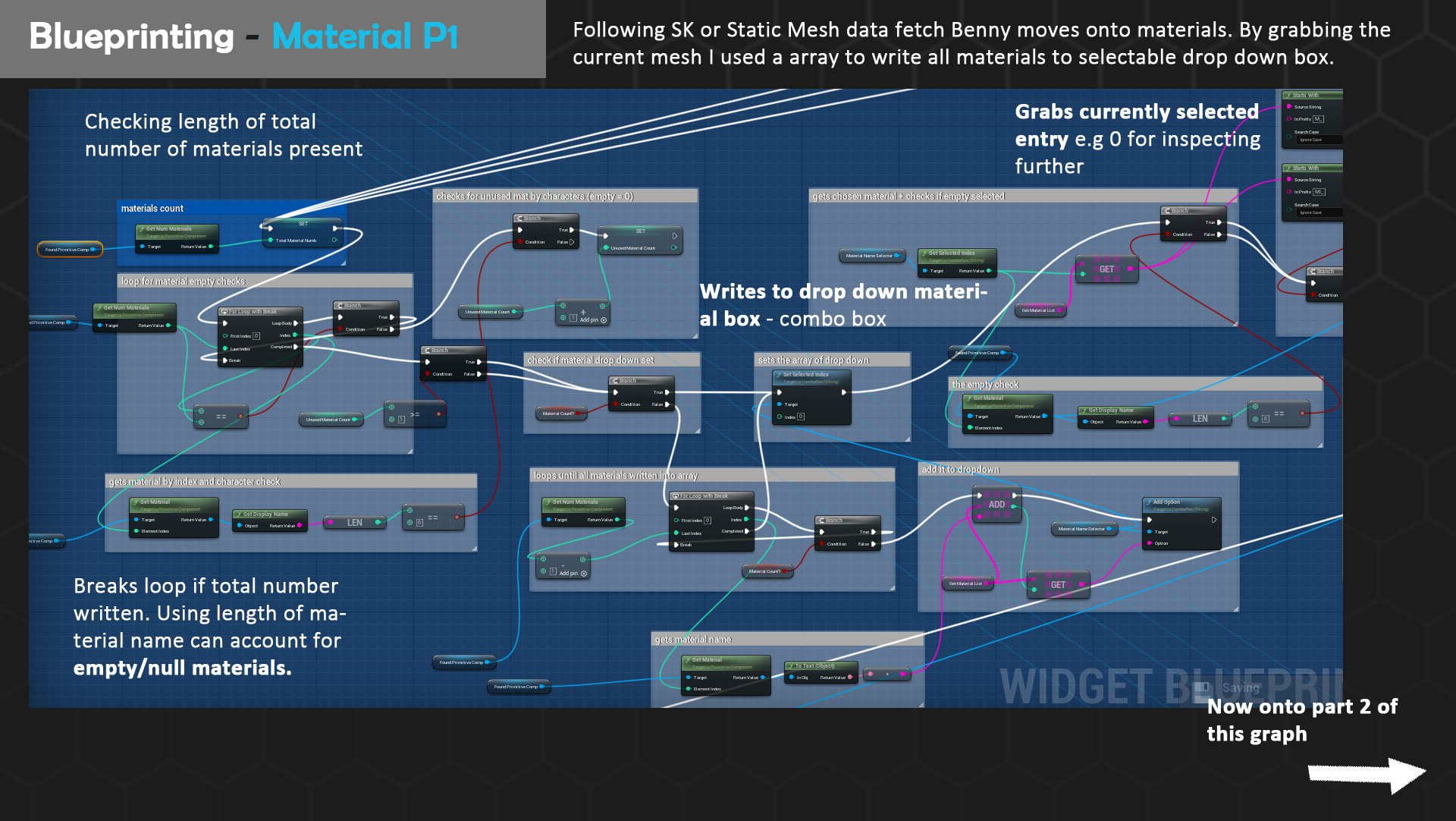
Following grabbing info for static meshes and beginning a custom event that grabs lods regardless of mesh type, we move onto materials. Materials are first counted prior to calculation and added to the combo box (drop down) array. I used this method quite a lot due to its reliable results to put names of each material, texture or lod in correct order. This data is then referenced further when selection is changed but in the primary first portion if 1 or more materials are detected then breakdown commences. The first being prefix check for either M_ or MI_ naming conventions. I also used the string length calculation to look for empty materials and tally up a score if there are unused slots on a mesh such as empty ids.

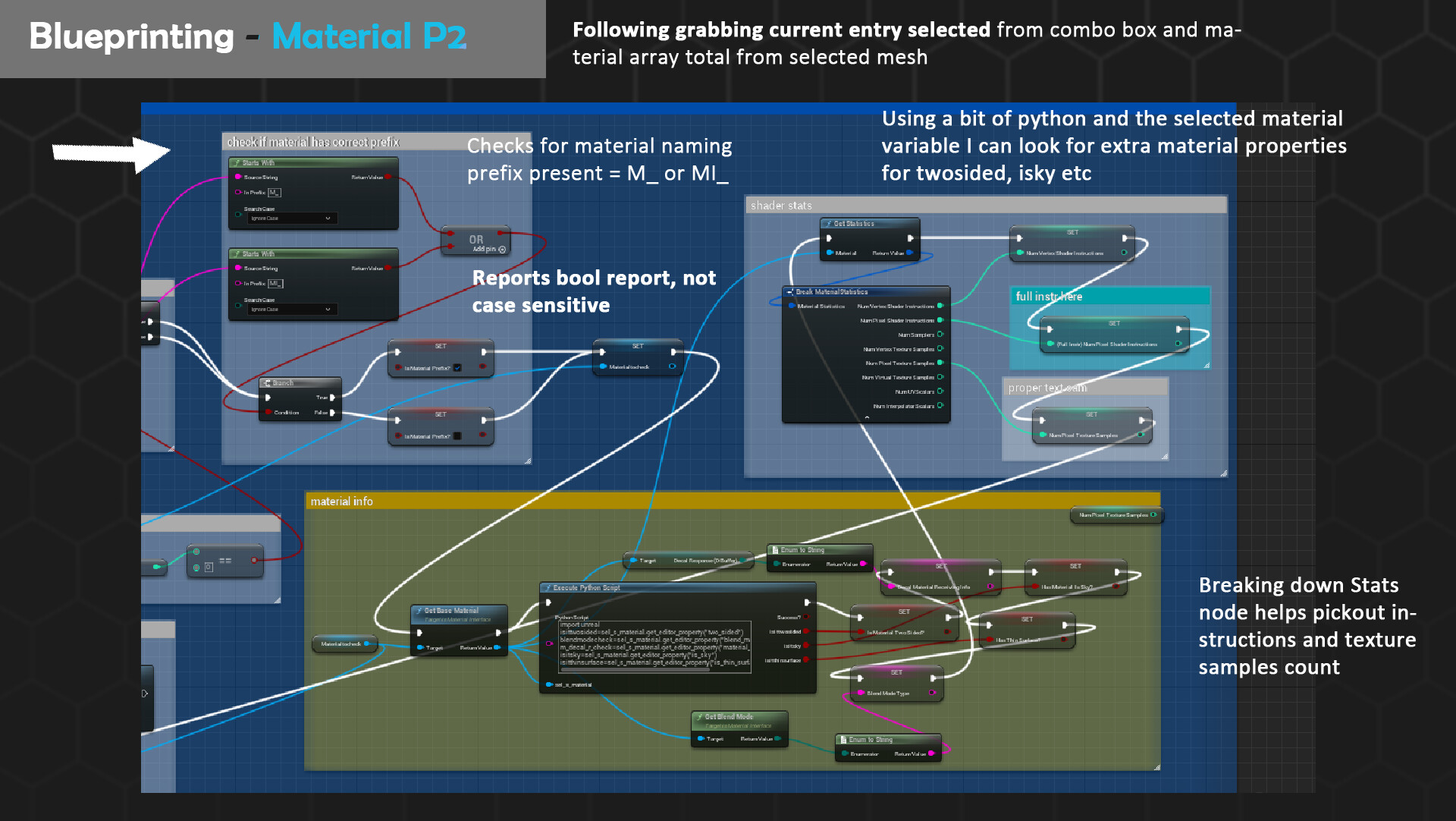
By getting the current selected index (the current selected material from drop-down) I can get the material instructions, shader cost and more data through a python script. There are two key differences between the preliminary shader cost calls as I realised pixel seems to refer to current rendered instructions whilst vertex compiles everything. This became more apparent when testing in my Pink Lady Diner scene as master materials have toggleable static switch parameters. Meaning not all instructions are used since some map adjustments, WPO or more is toggled off however still shows up in the vertex instructions cost count. As not all properties are available, I ended up consulting to a simple Python script that allows plugging in the selected material interface that is then combed through for editor Boolean tags of issky, is twosided and much more. These values help explain why some materials are more beefier instructions wise. Furthermore, you can also extract texture sample calls from this point which becomes very important up next to ensure only running the next portion if this is true to there being textures at all.

Blueprinting-Skeletal Mesh

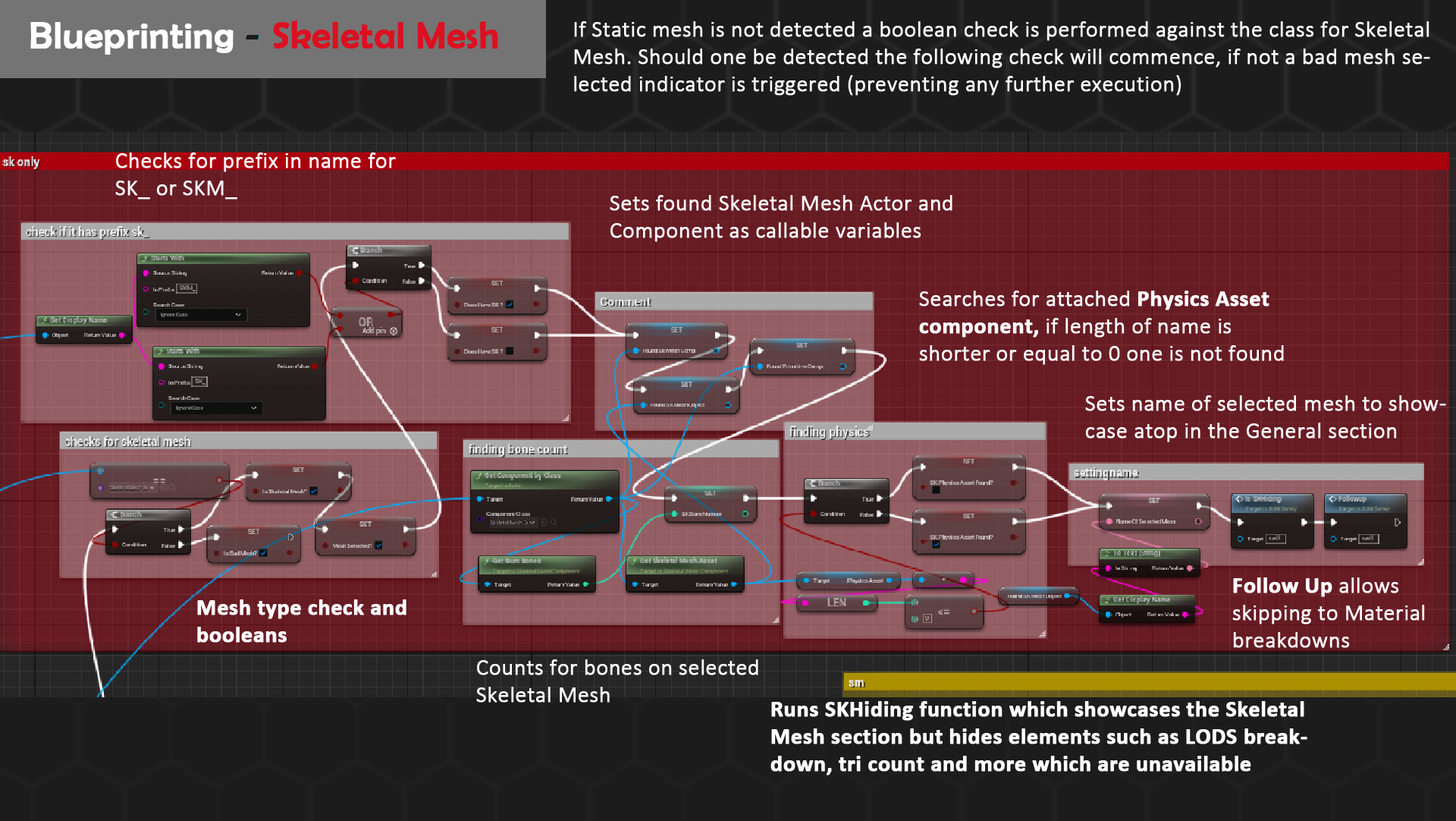
This is the alternate path to the static mesh route that eventually joins up on the material subsection by utilising a custom event, Follow Up. However, prior to all this some checks are performed to ensure that the mesh had a skeletal mesh component and is not an unsupported mesh aka bad mesh. A prefix check is then run on the display name for SK_ or SKM_ as I have also seen it used. Due to some limiting factors of data, I could get from a Skeletal Mesh no tri or vertices count could occur, but I did replace this by getting other useful data. Such as the total number of bones and if there is a present Physics Asset. A custom function is_SK also runs to hide all the mesh boxes that are not written to and reveal the skeletal mesh sections.

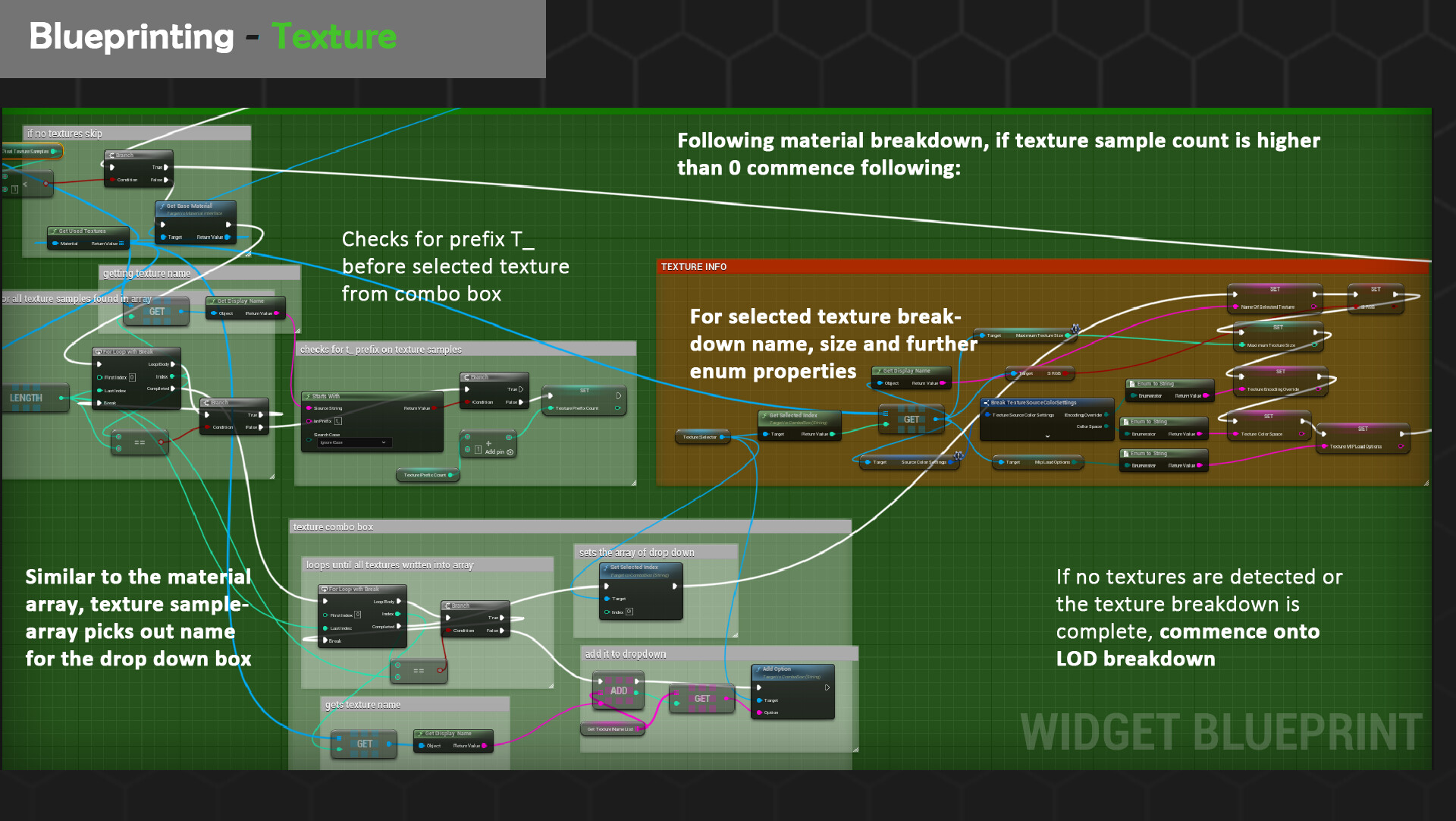
Blueprinting-Texture

Following on from the materials checker, if texture samples are detected then the array writing algorithm is employed to put the results into the correct texture drop down box (combo box). The index is then set at 0 and this texture is sent forward to be analysed further for SRGB properties, mip mapping and more. Prefix detection occurs here too. Unfortunately, I could not get extra readouts of scale and size on disk to work correctly which is why these variables have been scrapped. I encountered a plethora of bugs that caused crashes due to this request alone which I suspect might be with how elements are loaded into memory. Fortunately, this data can be accessed with the Tools>Audit options so if needed to lookup you can still find more readouts here.

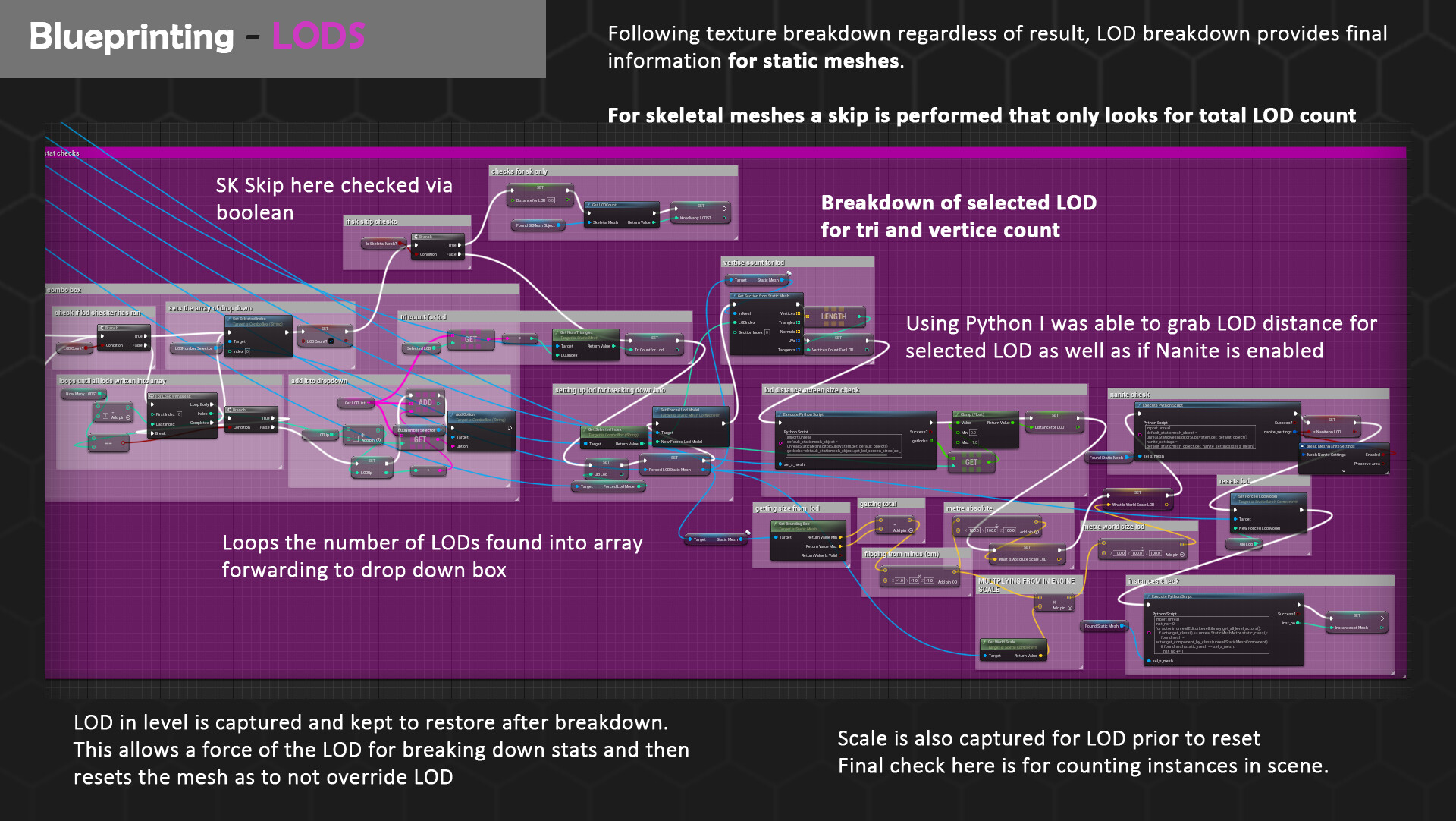
Blueprinting-LODS

The final large lookup of the breakdown occurs here for LOD breakdown. This section works a bit differently in that it both supports and skips Skeletal Meshes. Due to the nature of a lot of meshes not even having LODS this combo box may only write 1 entry for the most part. The most interesting variable I was able to grab is the screen distance value of which the LOD pops in on. This can be viewed to be grabbed on the Python script by plugging in the selected LOD. Another unique feature of this section is that for the viewability of these additional LOD details I had to use force LOD to load these meshes in. However, an empty variable allows to keep the data of the original LOD on the mesh from scene so that it reverts back once the data is fetched + looked up. Utilising prior logic, tri and vertices count is fetched here too by breaking down the sections of the LOD. Should a skeletal mesh be found instead a branch takes a very different direction.  The total number is still grabbed for LODS however distance is set to 0 as there’s no way to find this otherwise due to it being an unsupported mesh type from the Python side of things.

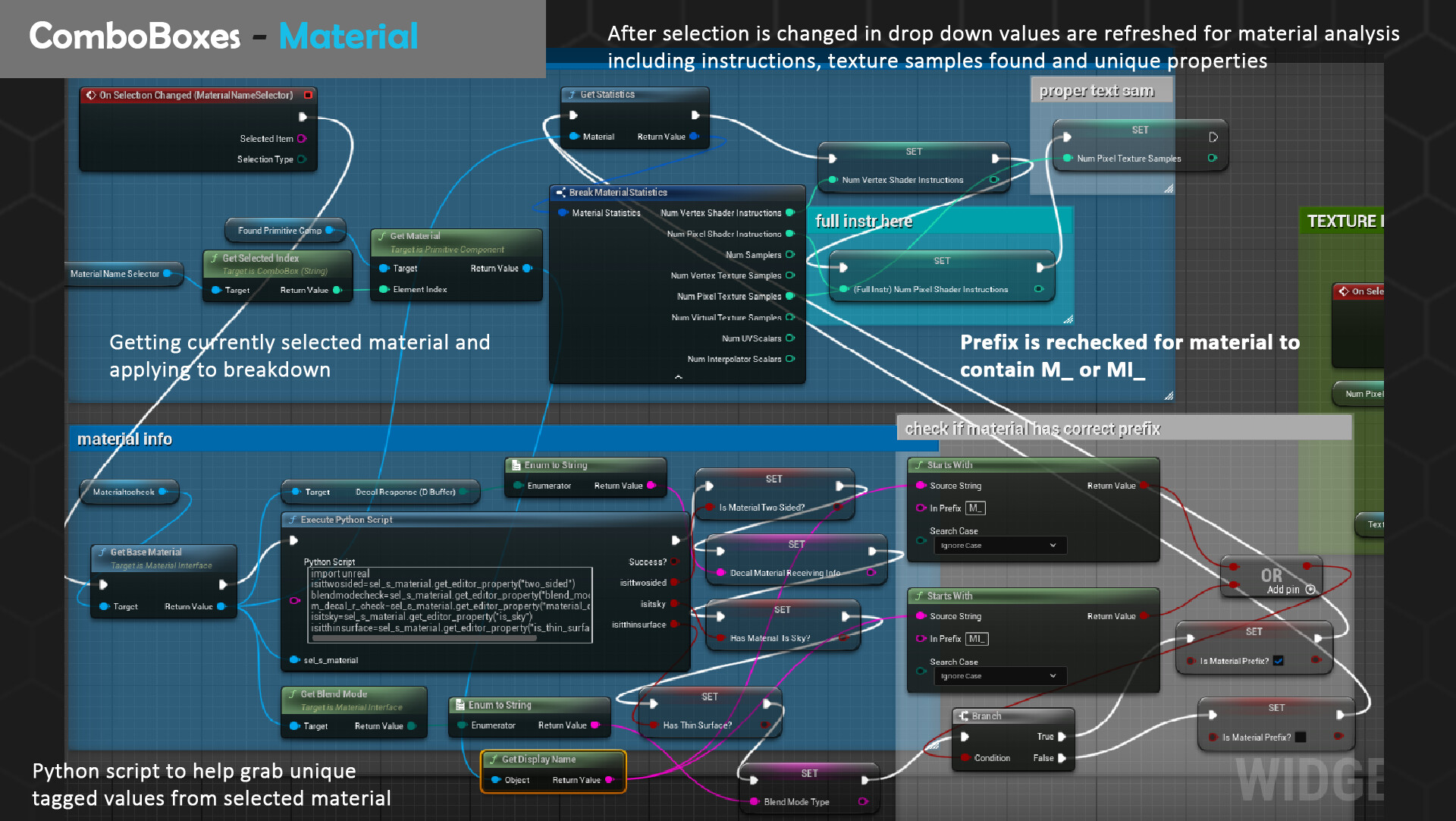
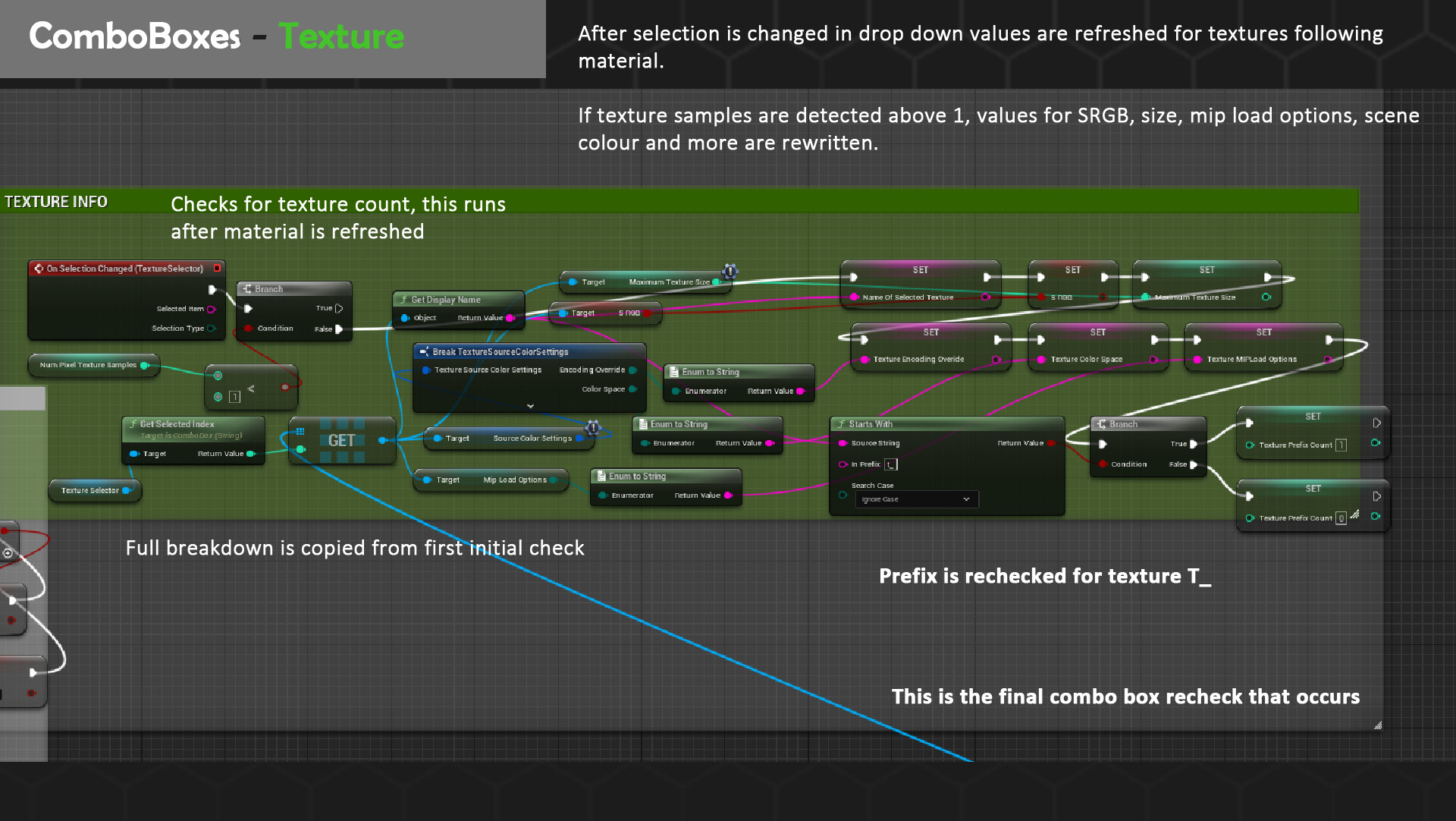
Drop Downs – Recycling Logic for Refreshing Selected Values

As you may already see if we only use the compute options, we run into an annoying predicament of having to compute for every change to a drop-down box. For most instances due to the clearing nature, it will not even remember what option was selected. Fortunately, the combo boxes (drop downs) have options to select events to run after a selection is changed. By re-grabbing existing nodes that look up parameters e.g. section breakdowns we can grab the selected index of the combo box to fetch appropriate data. 

As all our info is already gathered in arrays fetching it for these breakdowns is relatively easy with the exclusion of some big crashing bugs that I had to amend first. As not all checks can occur if elements are missing say no textures, however the user still selects an index drop down value of 1 somehow or from a prior selection, the project crashes. I had to manually implement failsafe branches to double check if there are textures, materials or lods to even sift through so in worse case the event graph picks up a selection change it wont run. This fixed the majority of my crashes.

Collapsable Menus

Initially I looked into tree view as an alternative to make collapsable menus however as previously noted it was not suitable with my widgets design goals. I also found this method to be more performative and easier to adjust by having two flip flopped states for hiding/showcasing elements. The logic was easily replicable across all events of on button click for the sections with the amendment of changing the text that would update the arrow direction.

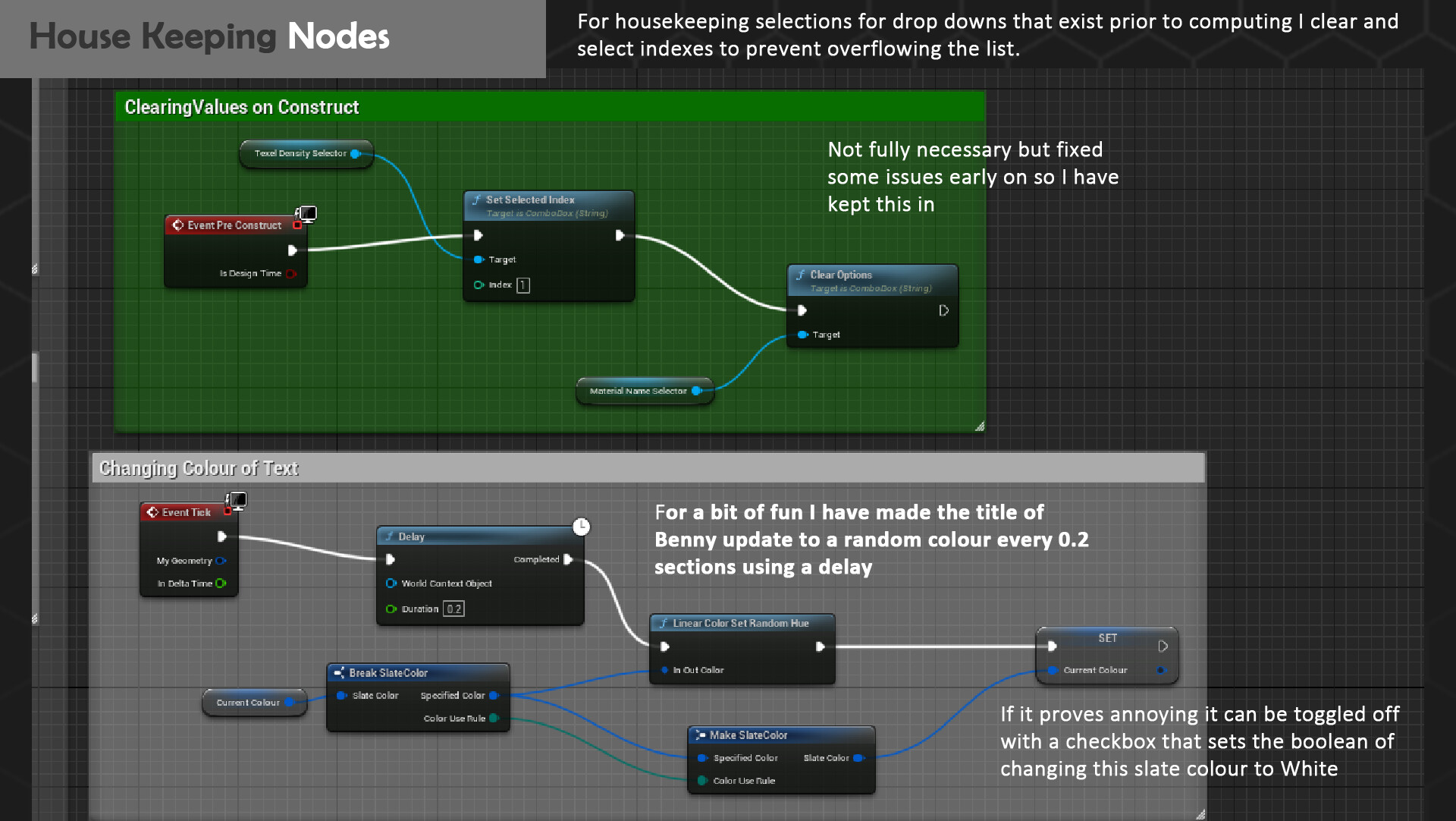
House Keeping Nodes

Due to the flow of logic some combo boxes had to be forcibly cleared as such the material box. However, I ended up encountering bugs that made the widget confused as to what the default index should be for elements such as texel density which would thereafter break logic using it to calculate math. So, I had to add some extra nodes to set these prior to construction, being careful not to overload this section as it would mean a longer run setup. I also had a little bit of fun by adding the header name Benny to change colour using some random hue logic. To maintain accessibility, I implemented a checkbox that would toggle this to a forceful white however you too can experience a bit of rainbow Benny on startup.

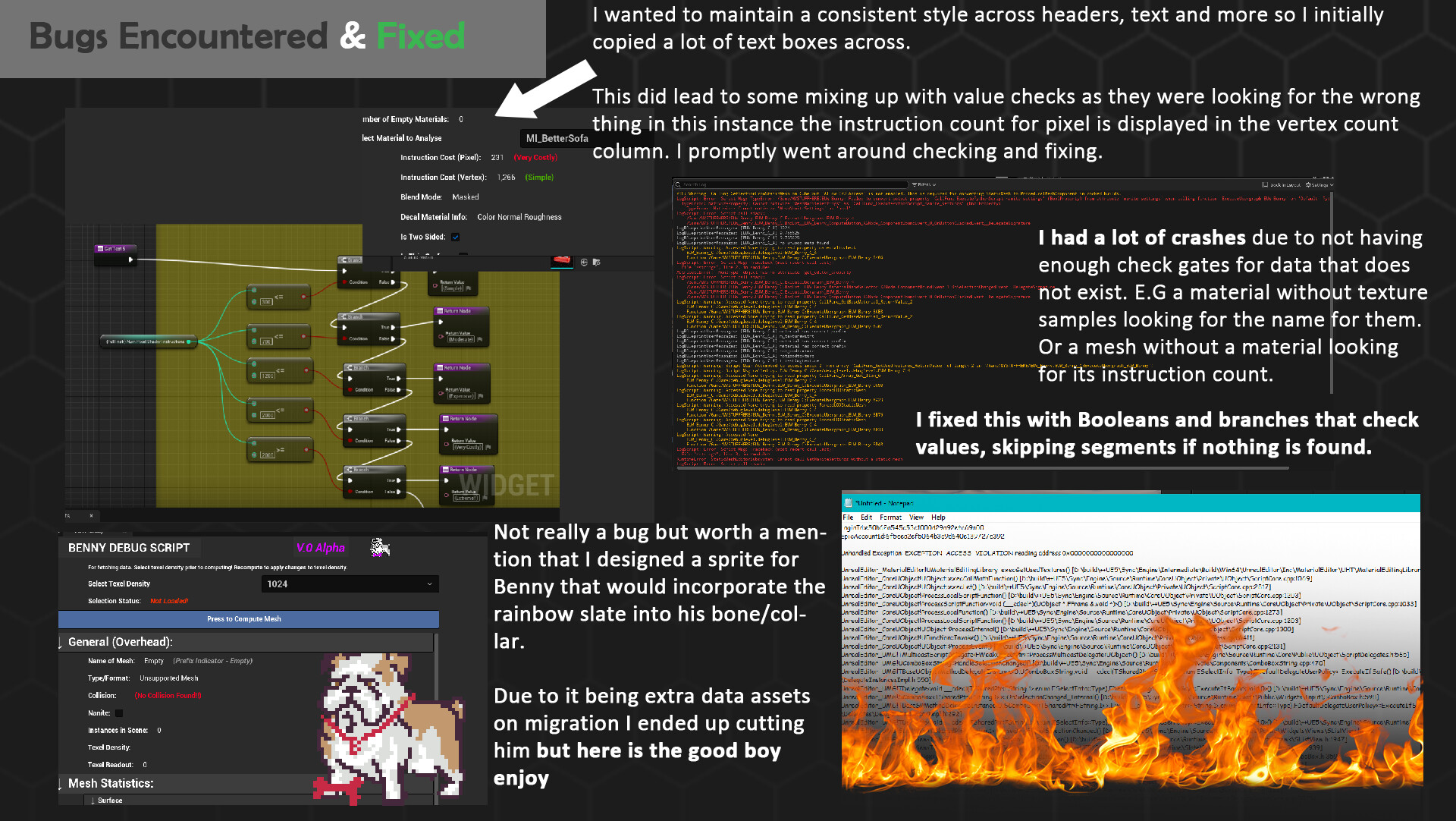
Bugs Encountered & Fixed

Due to this being my first time working with both Editor Utility Widgets and the Python Unreal Engine API there was a lot of crashes. For the majority of these bugs, I had a crash log readout to consultant that would tell me a variable would be looked prior to existing for example the textures being read on a material that doesn’t actually have a texture. By then having logic that acts on the assumption of there being a texture sample it crashed immediately. Other notable mentions are the Python APIs specific calls for Static Mesh actors. I had incidentally plugged in a Static Mesh Component, which appeared the same blue as the actor that had me very puzzled as to why I was not getting a readout of my Nanite and Instance checkers. I at one point was convinced my entire script was wrong however when I tried to run exemplar scripts it too refused to print out what I wanted. Secondary honourable mention that was lightly comedic was that Python has two grab commands for level assets and content browser assets. Prior to plugging values in I figured I must have to get them anew and was puzzled why the widget kept being picked name wise and exploding in errors. Turns out it was picking Benny as it was the selected widget in content browser, and I needed to alternate to the level editor actors instead of getting all actors.  Here’s also a scrapped sprite I made in Asperite for Benny that ended up getting cut as once again it meant a harder migration between projects.

Python API Link - https://docs.unrealengine.com/5.2/en-US/PythonAPI/

Final Showcase:

Check out the full Artstation post to see Benny in action:

https://www.artstation.com/artwork/yDwYzO

How to Photoscan Props with Substance 3D Sampler to Unreal Engine 5

Tutorial / 23 June 2023

Hello there and welcome to my short breakdown on how I used Substance 3D Sampler to photoscan my Gameboys into Unreal Engine 5. Theres a lot of different ways to photoscan, however I found this workflow to work best for me especially in making game ready photoscans. I’d always recommend doing more research before trying any hard-set pipeline, but I hope this guide can help you understand the general process of photoscanning, cleaning up scans and optimizing.

What I used:

  • A camera, you can use your phone but preferably a DSLR or mirrorless photo camera with adjustable aperture/focal lengths.
  • Strong computer with Substance 3D Sampler, 3DSMax, Blender, ZBrush, Substance Painter and Unreal Engine 5 installed.
  • A mug of coffee (optional)

Contents:

  1. Taking Pictures + Processing Scans in Sampler
  2. Cleanup and Assembly of Photoscans in 3DSMax (Optional Zbrush Import)
  3. Retopoligising High to Low Poly Mesh with UV Unwrapping In 3DSMax
  4. Reprojecting Diffuse Maps in Blender
  5. Baking the Rest of the PBR maps in Substance Painter + Cleanup in Photoshop
  6. Presenting Assets in Unreal Engine 5
  7. Tips and Troubleshooting
  8. Final Thanks and Thoughts

1) Taking Pictures + Processing Scans in Sampler

The first step to photo scanning is taking photos, and a lot of them at that. Sampler will end up cutting some out if they are blurry or difficult to match to one another so having more is better being safe than sorry later on. For taking my photos I ended up buying a cheap DLSR camera (Sony A230) so I would be able to lower the aperture and focus the shots more clearly than my phone camera. Lower aperture lets you blur the background when taking shots automatically and lock other settings like focal length keeping shots consistent + helps Sampler identifying what to cut out when generating masks.

Posing and setting up the props is crucial too, as any shadows cast, or hidden sides will not scan properly. I’ve been advised by professionals to try hang the props using fishing wire or use a tall pedestal to rotate the assets around a stationary setup in future. However, for my first try and with limited resources on hand I ended up taking a small board to prop the Gameboys up in the garden and took hundreds of photos of each side (rotating and resetting the Gameboy on the stand) to capture all angles. Do not move the props unless you know you are unable to capture certain angles!

The lighting the day I was taking photos of was quite cloudy which is ideal to ensure no harsh shadows ended up showing up on my scans. However, as I did miss some edges when photo scanning, I had to retake shots the day after to make up for it, which had slightly different lighting. This ended up affecting the colors of the photoscans even if the geometry matched so be warned there is more cleanup and patching to do later if you don’t take all the photos in the same day. Having access to a photography studio or a few high-power lamps would resolve this too as you have full control over the lighting.

Now comes the fun part – processing the scans in Substance 3D Sampler. Simply open up a new project and select new 3D capture. As I moved the object around to capture all the sides on my stand, I will have to scan these lots of images separately to generate separate meshes as Sampler will struggle to combine them on its own. After dragging in a group of photos, say the front side you can add extra info such as the sensor size or generate a mask. Since taking a lot of photos can make masking manually a bit of a chore, you can get sampler to generate masks itself. Depending on the color differences, blur, and other magical settings the quality of these masks can vary. But overall, I haven’t had too many issues generating them and much prefer the option since it saves a ton of time.

Next you submit the scans to begin processing and can select low or high precision alongside how to order the photos. I generally left this on low precision and default order as the mesh came out great and my dataset wasn’t too complex to process. However, if you miss any detail its worth going back and reprocessing using other settings to see if you can salvage it. Generally, through all my scans the Gameboy screens always processed poorly due to their shiny nature so to tackle this in the future I’d recommend placing paper or some sort of covering over the top to help keep the shape intact.

Youd then have to lightly touchup the color maps later to regain whatever’s covered by texturing it manually. With the mesh/meshes reconstructed, it’s time to set the post process settings before exporting this mesh to 3DSMax. I tend to up the 2048 map to 4096 to get the highest quality my computer can handle working on alongside upping the target face count. Theres more settings for how Sampler handles baking the normal, AO and even decimation/texture reprojection of the mesh that can help polish the scan here too. However, the scan is not game ready by any means yet, the UV unwrap for one is highly inefficient resembling a banana peel at best with the model having a high tricount that could be optimized better. So, time to fix this in 3DSMax.

2) Cleanup and Assembly of Photoscans in 3DSMax

With how Sampler scans models it’s not guaranteed they will be orientated the same so after importing all the scans into 3DSMax it’s time to carefully repositioning, resize and refit all the meshes together. Unless you have only a singular scanned mesh in which case it’s good to go. If there are any holes you can use the edge selection to bridge or cap these areas. It will unfortunately not bring back any missing textures but will make the model easier to work on with less holes in Zbrush later. I also used the vertices tool to cut and delete faces of my pink stand that was also captured below the Gameboy. However, if the model is too low poly to delete these faces without removing data from the mesh you can later do this more cleanly in Zbrush.

It is up to you if you want to combine this high poly photo scanned asset into one mesh. However, be careful as this may lose your automatically assigned textures unless the material is set up as a multi sub object material with correct ID channels for each mesh texture set beforehand. I ended up keeping the high poly in a group in the hierarchy, not merging it. Due to how some edges scanned I ended up using symmetry to bring back higher res detail due to the symmetrical nature of the Gameboys. The next step is optional, as bringing the combined assembled mesh into Zbrush is only something I do to push the details further and smooth out any broken edges.

You can also get Zbrush to retopologies a low poly base with better geometry to work on top of for the low poly mesh later rather than starting from scratch. Plus, a handful of more polishing with the ease of handling higher geometry counts that 3DSMax can. But if you feel the scans are sufficient enough you can begin making a low poly retop with good UV unwraps and skip out of this program entirely.

2) Optional Zbrush Import + Cleanup

Jumping into Zbrush, when importing the highpoly, ensure you check keep UVS and textures on. Each separate mesh will appear as its own subtool in the hierarchy which will make working on them nondestructive and easy to jump between. I recommend starting off by subdividing the scans quite a bit to make it smoother to delete any unnecessary geometry, such as stands, through the hide and delete hidden functions. Caution you can only do this on the lowest subdivision so you may have to delete the lower counts. With varying move brushes, smooth and carving tools you can add extra surface detail to the high poly here. The geometry is not perfect, and you shouldn’t remesh the photoscan as it will lose the UV detail + the photo scanned textures since it changes the mesh entirely.

After the model is polished to the best of its ability and aligned well, I recommend 2 different exports. The first being the high poly model, after some decimation (don’t forget to keep UVS when calculating and decimating!) You can get a way better higher poly model to use in baking rather than the original export from 3DSMax through this. It’s important to decimate the subtools as 3DSMax does not handle high poly geometry as well as Zbrush so bringing it down will give you the best chance of avoiding crashing. The second model being a low poly model, which you can make by combining all subtools and then remeshing them. This will lose the UVS, and detail however allows you to work from a similarly shaped mesh to your high poly back in 3DSMax. This method also works best with scans that are entirely one mesh to begin with (for example the Pokémon plushies). Now it’s time to head back into 3DSMax to make a low poly to bake to.

3) Retopoligising High to Low Poly Mesh with UV Unwrapping In 3DSMax

Whether or not you are starting from no mesh or the low poly remeshed geometry from Zbrush it’s important to align everything once more. Have the high poly on the same coordinates as the low poly or whatever base geometry you might use to retop. A great tool in 3DSMax is the Freeform < Object Pick Tool that lets you use a mesh as base to conform/draw new verts over. As the high poly is made up of parts/separate meshes (to help preserve the UV texture) I save a different copy of the scene in which I merge down the highpoly so it can be “picked” by the tool. For re-topping I tend to either draw a lot of verts and conform down or use a base square to work with dragging edges upwards to conform to the shape if starting from scratch. Either way its important to try and capture as much as possible in the silhouette of the asset and if there are any additional functionality, like buttons or switches, to model them in too. It’s important not to go too low poly as to lose any rounded edges or important mesh details if you are also working from a remeshed copy. After being satisfied with a good low poly mesh its important to UV unwrap it and try to smooth out the UVS as best as possible. Since the reprojection results will be affected if the UVS are not straight/warped. Since the Gameboys are all separate, I ended up giving them a sheet each. However, with having to reproject the textures later you can merge multiple props to one sheet to help save on space if you are making a modular kit of photo scanned assets.

4) Reprojecting Diffuse Maps in Blender

Blender is really the bread and butter of making the photoscan game ready as now we can take the high poly with textures model and reproject the maps onto the better unwrapped final low poly model. From 3DSMax, export the low poly model separate from the high poly photo scanned mesh (or meshes if multiple is needed) as a. FBX (don’t forget to embed textures on export). Align them both to the same point as to cause overlap and then head into the Shading tab. If the low poly does not have a material be sure to set one up (red ball with UV icon on the bottom right) and add a new image texture node that is blank (this will be where the baked map will go) on the bottom material node screen. I tend to keep these maps at 4096 resolutions since it is much easier to down scale and keep detail than it is too upscale later. Now double check the high poly meshes have the textures attached as well to their own material outputs (by clicking on the meshes in the hierarchy). Ensure metal is set to 0 as a value, sometimes blender can set exported random materials values to 1 which will cause problems when baking such as making the texture turn black.

Now onto the fun part; baking the textures down. First, it’s important to setup the bake settings correctly. Head over to the Render Properties panel, and make sure the renderer is set to Cycles. For devices I also recommend setting GPU as the rendering will go much smoother and faster than CPU (depending on your PC rig). Then heading down, under sampling set the renderer and viewports max samples to 1 (this will help save performance and has no effect on baking to my experience). Furthermore, you can set the light path to have max bounces of 1 and no reflective or refractive caustics. Under performance, make sure the tiling is set to be used, with the tile size matching whatever the image texture node is set to be baked to on the low poly prior. This will ensure the bake is the correct size. Further down under Bake, set the bake setting to be Diffuse (for color maps) or Normal (for normal data). I recommend mainly baking the diffuse color detail as the normal and AO maps can be made in Painter with better baking there. For baking diffuse ensure that under the bake settings both Direct and Indirect lighting is also turned off. We only want color data to transfer and not any lighting data from the scene. Enable selective to active, this ensures baking from only the selected meshes. I recommend playing around with the extrusion settings as depending on the low poly you may have to increase it around the range of 0.05-2 to avoid any clipping.

Now is the final and most important step, select all of the high poly meshes and then your low poly last (hold down ctrl when clicking in the hierarchy). With the low poly selected go to the image texture node you made and ensure it also is selected (it will have a white border) and hit bake back on the render properties panel. If using multiple meshes it generally takes longer for progress to show but don’t be worried if the texture bake progress sticks on 0%. After a bit of time the maps will be projected and baked onto the image texture node you made (it should show on the bottom left, if not make sure it is viewing the image). And all it takes is saving the image (click the lines icon above the image preview on the bottom left and then Image < Save as) to export it out. If you encounter any clipping simply go back and adjust settings, hitting bake to write over the image texture. If you want to bake other maps or adjust the image type/size, then be sure to hit the multiple paper icon on the image texture node to make a new image. If you adjust texture size don’t forget to adjust the tiling size! Now with textures baked across onto crisp UVS it’s time to do a bit of polishing and fixing the maps alongside generating new ones in Substance Painter.

5) Baking the Rest of the PBR maps in Substance Painter + Cleanup in Photoshop

As the previous export is already aligned, open up a new Substance Painter Project with PBR setting and texture size matching the diffuse bake. Set the project to open your low poly mesh exported previously and head over to the Texture Set Settings panel. Here is where the magic happens, however I tend to do a bit of housekeeping first which is optional. Add a new channel for ambient collusion and set both the normal and ambient occlusion mixing modes to replace. This allows us later to insert the textures and mask out any issues + work on top to add extra details. Now hit bake mesh maps and setup the bake settings to match the quality and resolution of your maps. Plus add the same high poly mesh export to bake from we have used in Blender to bake any missing details. Now with normal, ambient occlusion and other helpful maps for masking/generators baked you can head back into the layers panel. Add a new fill layer with your baked normal map and ambient occlusion (be sure to swap to AO/normal map viewing mode in the top left corner of layers to set the fill layer as normal instead of multiply/Nmdt). This puts the maps into working order as previously we have set the mixing mode to replace. If this hasn’t been changed then you do not need to worry about adding the maps back in. However, you cannot add a white mask to the layer and color out any baking issues.

Don’t forget to also import your exported diffuse map into Substance Painter and set it up as a fill color. If you have any baking color errors, I recommend going into Photoshop to use content aware fill or general painting to get rid of issues, and then reimporting the map back into painter. As Painter does not nearly have tools capable of easily adjusting/getting rid of blemishes as Photoshop does. One cool trick I learnt in regard to getting more surface detail/extra painted height information to show up in curvature, AO, and other helpful maps in baking (without putting it on the high poly model itself) is to export the final normal map out. Then import the normal back in (I recommend saving a backup copy of the project as this will affect any existing masks in effect), place the final normal in the Texture Set Settings panel for normal, go into Bake Mesh Maps, untick the normal baking and hit bake as to generate the other maps using the imported map. Now you can use the new curvature, AO, and other maps to further paint in roughness detail and other cool effects to make the photoscan matchup closer with PBR. Depending on the complexity of the photoscan alongside the quality of the scan you may be polishing and fixing a lot of issues. I ended up having a lot of seams, harsh lighting cracks on my diffuse maps from baking multiple meshes and misaligned text/wonky normal that led me to have to spend a few days on this step alone. However, be sure all and any time spent polishing is worth it as the photoscans can only go so far.

With a final result export as .TGA with your base color, normal and a packed channel map containing extra data of Ambient Occlusion, Roughness and Metalness. Targas is a fantastic file that lets you also keep an alpha channel per image that is useful for adding opacity/height maps without accosting another sheet. Now for the final step of setting up the photoscans in Unreal Engine 5!

6) Presenting Assets in Unreal Engine 5

With Unreal Engines 5 fantastic Lumen renderer I opted to ensure all raytracing and shadow map options were enabled whilst disabling static lighting. Considering I wanted to showcase the assets in a diorama you may or may not suffer performance hits with complex scenes by removing static lighting altogether as these forces all the lights to be real-time all the time. However, with Lumens capabilities I’d say it’s worthwhile and makes for easier adjustments. I used a mega scanned shelf to setup my Gameboys on (from Quixel Megascans), and began framing as soon as I imported my meshes in. Setting up a cine camera with a 2.5 sensor aspect ratio, 3 by 3 grid for framing the props dynamically in a three-point lighting setup. I find that having the grid helps you think about composition and eye direction from the get-go as you then begin to light the scene. Considering I wanted to showcase the variety of Gameboys in different angles I carefully added clutter to one corner to drive the focal point. Varying the sizes of the Gameboys and general height differences can also make for a more interesting composition. For post processing I also recommend setting the following values: Slope to 0,6, Toe to 0.5 and Shoulder to 0.25. I’ve found these settings to wash out Unreal Engines highly saturated color tone mapper to make for a bit more realistic result, be sure to adjust accordingly and with more fine tuning in the highlights, shadows, and global settings here too. Additionally, if you want crisper edges I recommend opening up the console with ¬ (in the top left of the keyboard) and typing in the following; r.Tonemapper.Sharpen 2. This command forces the tone mapper to sharpen the scene and gives you more crisper edges on render. Values between 1-3 are best but don’t go overboard as it can be easy to spot. However, the tone mapper will reset on startup of the scene so be sure to paste the command and number you want in the projects Default.Engine.ini found in the Config Folder. Paste the command under Renderer Settings so it looks like this:

[/Script/Engine.RendererSettings]

r.Tonemapper.Sharpen=2

This will now add the command to startup, and you can add any extra tone mapper or renderer commands here too. As for material setup, I tend to make one master material that connects texture sample parameters for my base color, normal and channel packed maps. Extra adjustment nodes such as desaturation, flatten normal or general multiplies for parameters are also plugged in here to make it easier to adjust instances on the fly. And since a lot of my Gameboys share the same textures minus the base color, I can adjust per instance much easier using a similar master material.

However, one final node I highly recommend adding is Parallax Occlusion, if you have any sort of LCD or depth effect that occurs when going to the sides of an asset. With a simple height map of white for the affected areas packed onto an alpha channel, you can setup a bit of stepping to occur when going around asset faking that detail. Similar to how an eye refracts light darker into the central iris. Parallaxing is taxing on performance so having multiple master materials is what I found working for me, with simpler adjustment ones being used for the majority of assets, with parallax/animated variants being used on single assets. This cuts down on the instructions the materials have which can save considerable performance if you have multiple draw calls. Generally, I gather a lot of lighting references and inspiration when composing and lighting the scene. Don’t forget the point of the render; in my case being to showcase the Gameboy Advance specifically and take following shots that add to uncovering new details rather than fill/waffle the renders. Video renders are also great fun to showcase the scene in motion if you have any simulation/effects but level sequencer is its own beast so I might do another post on that entirely. Generally, this is what I have stuck to and came out pretty well.

Tips and Troubleshooting)

  • Take photos with your best camera and in cloudy/shadowless conditions.
  • Try to capture all angles but move slightly between photos to keep most of the frame consistent, helping the program know where you are.
  • Do not move the object at all unless it’s a new angle for a new mesh or you are using a turntable with constant interior lighting e.g., a photography studio.
  • Use low aperture and blur the background of props to help masking when taking shots.
  • Cleanup the scan mesh always, mask and look for oddities in the generation as Sampler isn’t perfect.
  • Fill in holes in 3DSMax prior to export to Zbrush and keep things quaded (n-gons are the worst)
  • It’s easier to clean up the mesh in Zbrush as adding more geometry lets you cut away easier at higher tri counts than 3DSMax.
  • Depending on complexity you might be able to remesh the photoscan high poly into a low poly and use it as base to start conforming in 3DSMax than starting fresh. (Using Zbrush)
  • Straighten your UVS for the low poly to make for best baking/reprojecting results.
  • In Blender if the image texture being projected looks black, check all the high poly photoscan meshes for metalness/rogue PBR values in materials. Ensure they’re set to 0, you don’t want PBR to interfere with the color renderer. Also ensure only the lighting available is color and no indirect/direct lighting is projected. The final check is to ensure the order of selection is correct, select all high polys first then the low poly last and the image texture node last too before hitting bake. If it’s still black, I’ll pray for you.
  • Photoshop content aware fill is a godsend for patching up and fixing any issues in the diffuse maps of photo scanning. Be wary of seams and keep the general mesh without any shadows. You can use layers to isolate any different lighting spots and then match/replace the color to the rest of the map below if need be. Painting and overlaying text/graphics can also help get a better result if deformed/warped in the scanning process. Use the texture as a base reference where to place stuff. Do keep the original blender reprojection however in case you need to pull elements back.
  • Use the normal baking trick as mentioned in Painter if you add substantial height definition/detail + want to generate maps/masks that match it. Be warned it will affect all existing masks/generators that use curvature, world normal and more so save a copy of the project first.
  • Setup a good cine camera as you begin to light and tone down the slope, toe, and shoulder settings for more realistic results. Don’t forget to keep composition clear and use console commands to adjust sharpness/other effects on the tone mapper.
  • If you have preview lighting showing up or Lumen misbehaving it might be because static lighting is still enabled. Disable it in settings and ensure the project has Direct x 12 running with shadow maps and Lumen enabled for both lighting and reflections. You can also play around with indirect lighting, resolution, light bounces and more in Post Processing for Lumen to finetune the renders.

Final Thanks and Thoughts:

I would not have been able to have done the project if not for the following amazing people down below. Having never used Sampler nor Blender the advice and tutorials/content out by these amazing people made learning all the easier to go through. Overall taking about 2 weeks I’m quite happy with the results. But I know that I can definitely continue to improve the assets and further scan having obtained some good advice from an industry professional in regard to 2 key issues.

Inconsistent Lighting – use fishing wire to suspend the props and take shots from all angles without moving the mesh.

Loss Of Detail – use the photoscans as base mesh and make a new high poly with more defined details/exploded components that assemble for a more realistic result.

Theres still a lot I want to learn about photogrammetry but being able to successfully pull of a scan and make game ready assets has motivated me to continue to pursue learning more. And I will definitely get my hands on some fishing wire and other elements to make my scans better quality whilst waiting for more cloudy days. Keeping an eye out for industry, a new program I want to tackle next is Houdini. Simulations and scattering tools to help make environments easier to randomize/generate with populating assets are all elements Houdini is known for and would be great to pick up skill wise. Additionally, the LCD animated shader for my Pokémon game overlays using flipbook nodes  in UE5 is something I will save for another post as it’s quite a comprehensive process.

Bibliography:

3D Sampler Scanning Advice – https://www.artstation.com/gapur

Substance 3D Capture Documentation - https://substance3d.adobe.com/documentation/sadoc/3d-capture-247825363.html 

Parallax Eye Shader - https://youtu.be/GVNKpHOD5n0

Flipbook Animation - https://youtu.be/L0dT_dPPVPI

Reprojecting Textures - https://www.youtube.com/watch?v=Yx9TvvnxCAM

Converting the Pink Lady Diner to Unreal Engine 5.1

Work In Progress / 17 May 2023

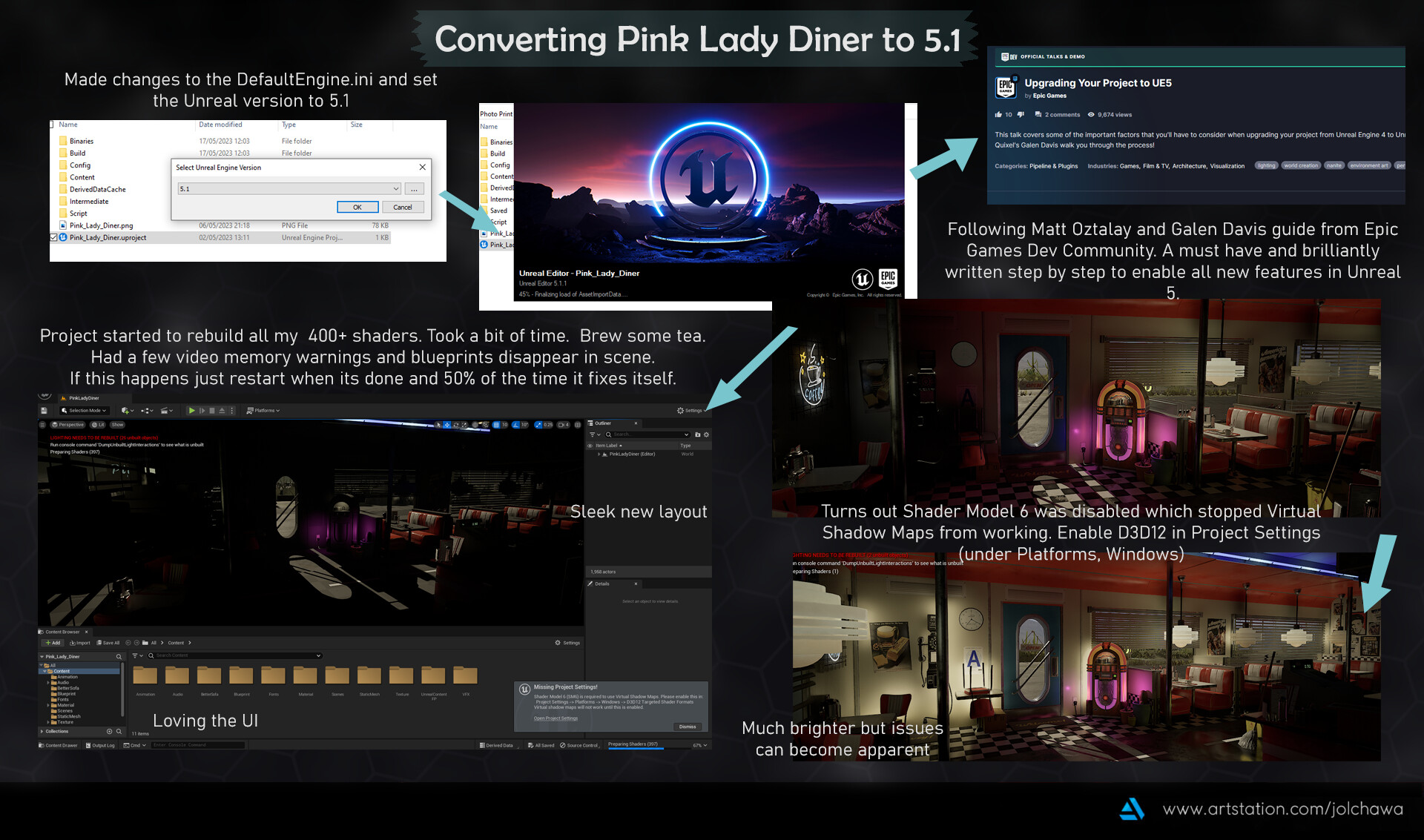
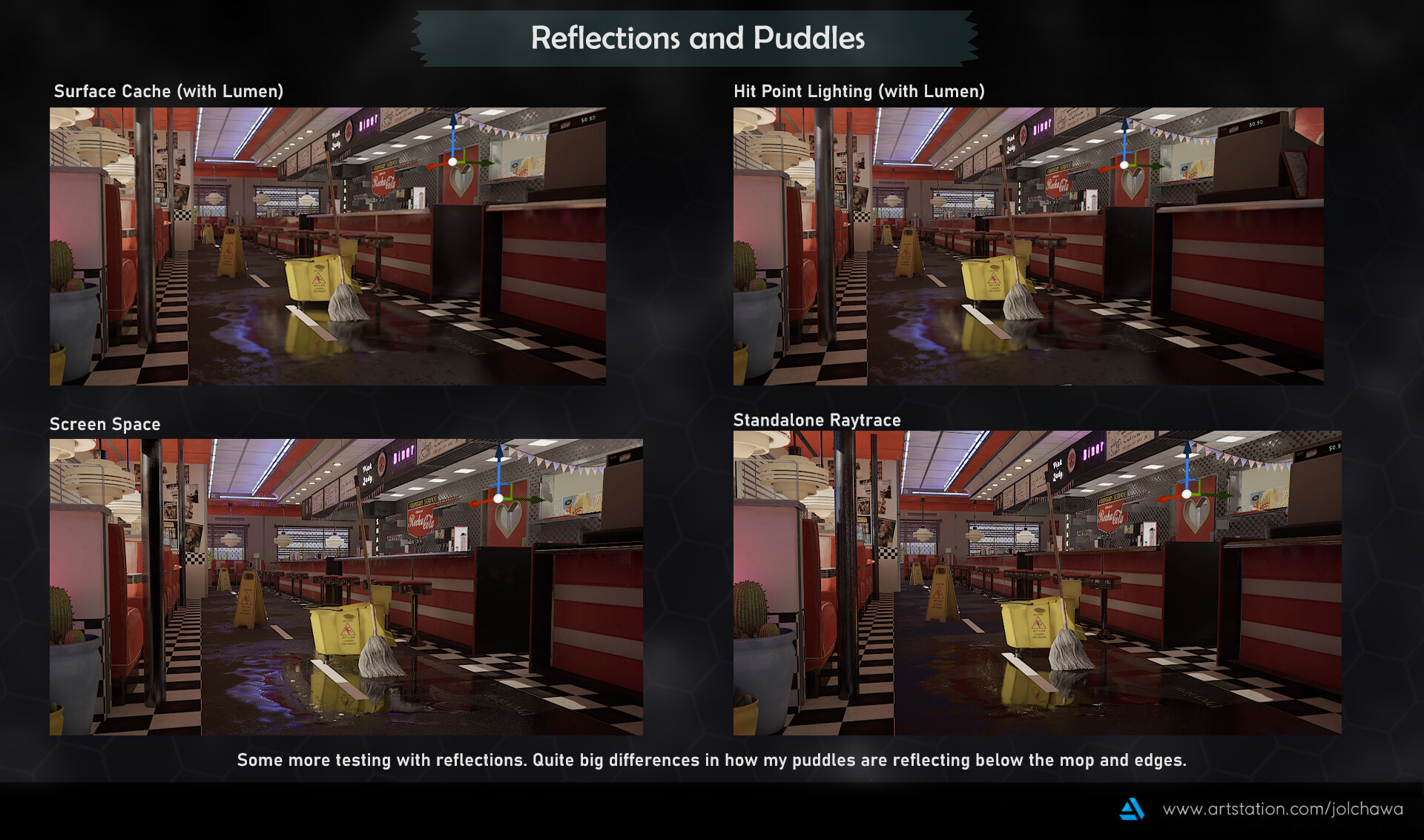
After about a week of extra tinkering and applying some fixes following hand in, I figured it's time to migrate my project over from Unreal Engine 4.27 to 5.1. Predominantly to figure out Lumen and with a complete scene at the ready with varying interior lighting shots I knew this would be the perfect opportunity to do so. 

Please do keep in mind this isn’t an exact comprehensive guide on how to upgrade projects from one version to another. For that I highly recommend checking out Matt Oztalay and Galen Davis guide by Epic Games (Davis & Oztalay, 2022)  to do so cited at the bottom of my post. I was able to easily follow along and the results came out great so be sure to backup your project and give it a shot!

Converting the Diner)


After changing the version for booting the project to Unreal 5.1, I recommend pasting the guides commands into the DefaultEngine.ini file for saving on some manual back and forths with restarting. The project did take a bit to load for the first time but was smooth sailing from there (after rebuilding 400+ shaders). Don’t forget to also enable Shader Model 6 since it prevented Virtual Shadow Maps from working without it. As you can see below problems have already arisen so let's get to fixing them.

Fixing Light Bleed)

The biggest issue I had was a lot of light bleeding with Lumen through the sides and bottom of my walls. This was due to 2 main issues; lack of thickness in the walls and no two sided materials to prevent light leaking in. To resolve these issues I found the quickest way was to use the Unreal Engines cube combined with some dark materials to block out the light where it became most apparent. However for future projects I know when modelling interior spaces or ones that will be hit with directional lights it would be better practice to model in more geometry to help bulk out any light bleeding. Another recommendation is to play around with the indirect lighting values on lights to boost the lighting bounces insides + ensure you have disabled static lighting. I have had a lot of problems trying to have both Lumen and static baked lights working which I can only assume to be some sort of clash with lightmaps/virtual shadow maps. So by disabling static lighting you can use Lumen's full realtime potential and try to avoid any odd artefacts from lightmaps. Don't forget to also set lights to movable/stationary so they don’t stop working altogether if static. 

Reflections and Global Illumination Tests) Toilets

Another issue that I had was with reflections, especially with my toilets. The entire room is angled towards the large mirror and previously I had set up a planar clip reflection to give off a mirror quality reflection in Unreal 4. However with what I can assume to be the amount of gpu stress Lumen and any raytracing does in Unreal 5, keeping the reflection plane led to drastic framerate drops. To the point of which I suffered a crash and couldn't enter the toilets to adjust anything if it was rendered in view. So I deleted the plane from the hierarchy and started back to square one, with a square reflection capture (additionally don't forget to disable the global clip plane in settings if you are not using any planar reflection). Here are some results from my testing with different global illumination methods and reflections alike. 

My summary of findings can be concluded that the least problematic method for my scene was using lumen's global illumination and lumen’s reflections with added hit lighting ray trace settings. As whilst both ray tracing and screen space did provide some interesting results in illuminating the toilets they both were quite harsh and overblown in their shadows. I’m sure with more fiddling in post process settings I could have maybe turned this down a bit but lumen was the easiest and less performance intensive on my end to get good lighting with little fuss. 

Moving onto reflections with lumen I found that the raytrace gave the most accurate and best looking reflections. However I had a strange orange tint from what I can assume to be maybe my directional or skylight conflicting with the rays being cast. Screen space ranked the worst as it was horrendously dark for some reason kind of eldritch in nature. I have a feeling my reflection capture wasn’t being picked up well or there was another hidden setting I had missed to upscale or tick. I ended up going with lumen since it removed the orange/yellowing tint issue found in ray trace however it also had its set of problems. There were two methods of raytrace for lumen to get data from the most accurate being Hit Lighting. However even between that and Surface Cache (which I can assume to be better for performance) the back wall had a dark gradient near the ceiling. I tried resolving this by buffing out the walls with cubes but the issue did not go away, so I can only assume it's my own wall meshes at fault. 

Reflections and Global Illumination Tests) Front Seating

Moving to another location the front seating area was another hotspot for lighting and reflections I wanted to test. As you can see there are some drastic differences in renders, especially looking at base ray tracing for global illumination. Unfortunately my performance was drastically chugging when upping samples and bounces and I decided not to tempt the Unreal gods after already suffering a few crashes at this point. With a more simple scene I would love to be able to try and go crazy with the values of raytrace since my GPU can support it (RTX 3070).

Generally lumen proved best value wise and performance. However when going to reflections the minimal difference you can realistically spot here can be seen in the posters/payphone. Hit lighting raytrace for lumen is a winner once again as base raytracing had some strange dark spots on the metal frame of the door and jukebox. The scene could be lacking enough bounces or maybe picking something up from the checker floor. Either way let's move onto some more notable reflection differences I found by focusing on my mop puddles.

Reflections and Puddles)

To make the tests more short and simple I maintained lumen for global illumination through all these shots the differences coming in at the reflection renderers. Surface Cache with lumen proved to boost the nearby colours as it was picking up a lot of the yellow mop bucket whilst its more precise cousin the Hit Point Lighting setting cast a darker outline there since it was underneath. Screen Space definitely won the award for the most slippery as the roughness bounced and shone right back up making for a very big slippery hazard. However the standalone raytrace proved to be more realistic in a sense of the puddle being absorbed to the rubber mat and darkening the overall reflection even with metallic points such as the back diamond wall. In conclusion, quite fun to render out and I would happily use all of these settings on a project by project basis depending on what I am looking for in terms of clarity, colour or darkness for realistic measures in puddles/roughness. 

UE5 Diner Short)

Having fixed up some textures on my sofa mesh and overall roughness values to try and work in tandem with Lumen I went to re render my short video set to “A Teenager in Love” by Dion DiMucci (DiMucci, 2008) now into Unreal 5.1. I’m quite happy with the result as the level sequencer had held up well and generally lighting and shadow proved to be a step up in UE5. If you want to watch a side by side comparison I edited both my renders down below for ease of watching.

UE4 VS UE5 Diner Short Comparison Video)

One major gripe I had when comparing my shots was the storage room scene, as it had  considerably suffered in quality compared to its Unreal 4 counterpart. This was primarily due to the render struggling to get the scene dark when being slotted so close to other surrounding rooms. Filled with hanging lights, neon and other large attenuative lighting this bled through the walls into the storage section. I did try my best by reducing overlap, indirect lighting and even slotting cubes between what little space was on the walls but to little change. For future reference I would highly recommend considering how far dark interior spaces are in comparison to their light counterparts in the floorplan to try and avoid issues such as this from the get go. However for the time being I am still pleased with the other 75% of the render. 

Comprehensive Static Render Comparison Video)

Wanted a more direct comparison of all my static render shots as well? Well look no further I have also made a short video with that too. All my shots from UE4 are shown for a few seconds before crossfading to the UE5 counterparts for easy comparison. I recommend checking it out as the differences in many shots are like night and day. In the most positive of ways, minus the storage room but we don't talk about that. If you like the music the full track is called “Ain't That A Shame” by Fats Domino (Domino, 2021) and can be found cited in my bibliography below. 

Summary)

In conclusion Unreal 5.1 is extremely impressive and fun to use! I must admit that despite the small issues with reflections and a handful of crashes I’ve had by upping some values a tad bit too far, the project looks substantially better. My overall lighting looks way more sunset in nature and warm to match the cosy retro vibes the diner gives off. Generally fitting a more mellow time when having to close up, mop and take care of the diner as the sun begins to simmer down. I have learned quite a bit of dos and don’ts having brought my project up through some drastic version changes and will definitely keep this knowledge handy when working on my personal projects next. I definitely want to tackle making best use of Nanite as this project used a lot of translucency so I was a bit restricted in that case. There is also definitely a whole chunk of knowledge I have yet to learn about pushing my models and textures in UE5 so I can't wait to get around with more experimenting and learning. Thank you for reading and I must once again thank Matt Oztalay and Galen Davis (Davis & Oztalay, 2022) for making their fabulous guide as I would be greatly lost without them. 


The Pink Lady Diner in UE5 - Artstation Post:  https://www.artstation.com/artwork/aogvq2


Bibliography:

Davis, G. and Oztalay, M. (2022) Upgrading your project to UE5: Talks and demos, Epic Developer Community. Available at: https://dev.epicgames.com/community/learning/talks-and-demos/J5q/unreal-engine-upgrading-your-project-to-ue5#:~:text=You’ll%20be%20able%20to,versions%20before%20upgrading%20to%20UE5 . (Accessed: 14 May 2023).

(2021) Fats Domino - Ain’t That A Shame (1956) 4K . YouTube. Available at: https://www.youtube.com/watch?v=2FDYyf8Kqrs  (Accessed: 14 May 2023).

DiMucci, D. (2008) A teenager in love-dion and the belmonts-original song, A teenager in love-dion and the belmonts. Available at: https://www.youtube.com/watch?v=o-Xvgv92GBc  (Accessed: 14 May 2023).

Final Major Project - Final Renders and Evaluation (Week 18)

Work In Progress / 09 May 2023

Full Title: Game 3004 Final Major Project  - Final Renders and Evaluation (Week 18) (08/05/2023)

After some work and polish here are the final renders; my project summary can be found at the bottom.

Final Renders)

Short Video - “A Teenager in Love”)

Asset Zoo and Wireframe Video)


Summary and Critical Evaluation)

Overall I must say that this has been the most enjoyable project to date. It started off a bit rocky considering I took some time to come around to the diner concept. There have been many hardships and problems along the way especially around lighting and my textures. However I feel I have gathered a greater understanding and appreciation for lighting in the engine alongside the creation of modular kits. I ended up making 1 more room than I initially intended to in regards to the storage area and even a short film detailing a short but sweet narrative of a “teenager in love”. However to answer the big questions:

Have I met my brief?

In summary yes, with even a few stretchgoals met regarding the jukebox, animations and sound design. However one aspect of my goals was to have modular walls be availablein the final modular kit set to use, which I did originally have in project. But ultimately chose to merge into one as to reduce lighting issues. 

What could I work on to improve the diner?

I still believe I can push for further detail on my textures to make for more believable and worn results. Especially with decals focused on wall/furniture wear rather than stians/dirt. I could also redo the higher poly version of the sofas as to sculpt more believable leather material and proportions. 

What would I do differently should I restart the project?

I would definitely experiment with adapting the structure of the diner to be less like the classic cart stretch design. Whilst originally this cart layout did prove useful on the railway, it does limit the space for more legroom and further interesting seating arrangements. This could also increase space in the kitchen/toilets as the overall building wouldn’t be limited in its width.

What are my overall closing thoughts?

I definitely didn't expect to explore filmmaking as much initially at the start but this project has definitely inspired me to look further into editing and creating short clips of my scenes to a more narrative standpoint. My greatest challenge has had to have been the front of the house section since originally it was going to be so much more neon pink and blue teals. However with my peer feedback and growing understanding of designing more better composed scenes I strangely enjoyed decluttering the diner and scaling everything back to a more vintage destaurated warm reds. I end up overscoping or overusing my assets to the degree where it can become noisy and muddled so taking that step back to ensure that the true focal point shines through alongside making my render more cinematic with the film settings; truly changed my scenes for the better. And taught me a great deal along the way.

Lighting wise I believe this is my strongest level to date. And I definitely want to explore further venturing into Unreal Engine 5 with this project or other softwares to really dive into simulations/modularity on an unparalleled scale such as Houdini to push the limits of my models to the extreme. 

I do want to also close off on a formal thank you to all my peers in class who helped give invaluable feedback and advice on how to tackle certain issues: looking at you Barry that lighting tutorial was a game changer. And many more friends and lecturers who helped out tremendously. I would not have gotten here without them and their support. Stay tuned to this blog for more cool works to come!

Final Major Project - Final Polishes and Decals (Week 17)

Work In Progress / 09 May 2023

Full Title: Game 3004 Final Major Project  - Final Polishes and Decals  (Week 17) (01/05/2023)

Research and Making Decals)

With feedback dating back to my earliest weeks I have always wanted to add decals to spruce up the scene and add a narrative layer of dirt and grime of what customers came before. I realise combined with the tray and plates/bread I can easily make sets of trays with food eaten/split to showcase a narrative that had taken place earlier. 

In particular after setting up shots I knew that puddles and larger stains of ketchup/milkshakes would prove useful to draw the eye in the focal direction I wanted. So I went onwards to make a wide array of decals predominantly from alphas that I would paint over to extract a more finer base colour, and utilise levels to provide a roughness/height to export out. I knew I wanted to utilise the most of the deferred decal workflow as it would cost the least performance wise with its culling but provide a bit of normal detail keeping the decal generally low cost.

Research of Flag and Cables + Making)

An element I thought was missing with my further addition of sound was the movement of outside wind. I wanted to emphasise the wind's effects and what better way than to create America's number one article of high flying glory; the American flag. Its simplicity and boxy shape meant that I could limit it to its own small UV map and easily bash it out model and UV wise. 

I then textured it and added a bit of wear to the end considering the rough conditions outside would make the flag dry and break off over time. I did however pay attention to another detail missing from my diner that being cables. A few weeks ago I made sockets with texture and a plug but no cable which made all of my machines very unrealistic in terms of where would it even plug in? So I set out to make a simple cable mesh and add it to this flag mesh to make the most of the remaining uv space to add more contextually relevant assets to tie my diner into realism.

Blueprints) Sound Design + Sound Control)

With the music in the jukebox functioning I didn’t want to leave the diner empty and quiet so I went a more unrealistic gamey route to add a backing track. This music would be fairly quiet and I soon realised that its elevator-like qualities proved to make it easy to work on top of when the jukebox would play. However there was an issue of how loud it would have to be and vice versa quiet when a track is playing. For this I made a simple quality of mind blueprint that evolved to help control the other sound effects popping off in the diner in regard to the kettle or flickering light. I would have a delay that would be set on the sound as well as for the effect of quietening down for the jukebox, a casting to node that would set and check the audio volume at all instances. When below and cast to it would slightly quieten the music and when done playback with a track it would once again cast and bring up the volume. A strangely easy and working solution that I thought would cause a lot more problems considering my initial behemoth of a jukebox setup.
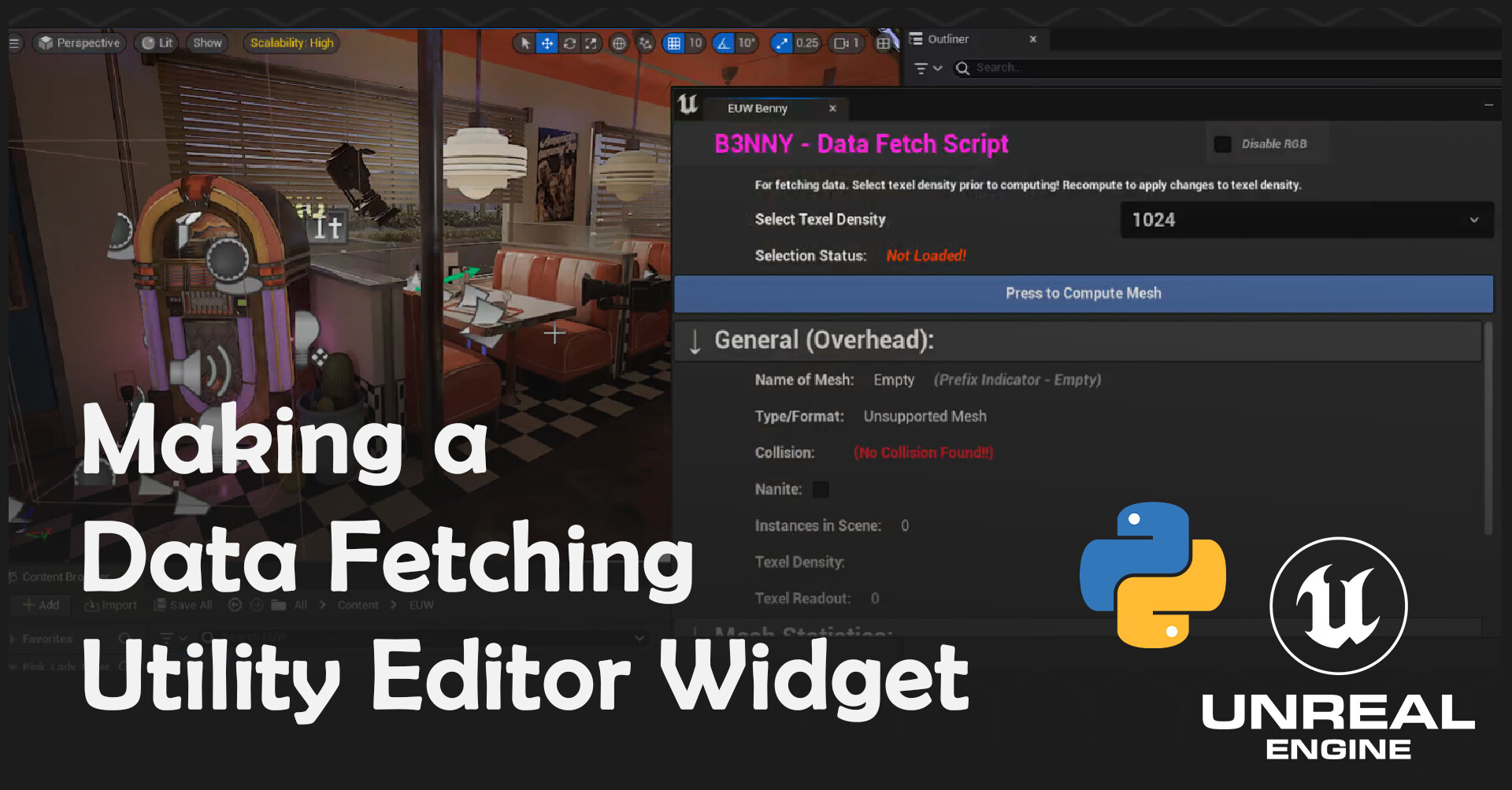
Cleaning Files, Asset Zoo and Placing Flag)

One core area I needed to make to meet the desirables and also be able to see just the scope of assets I have created thus far was the asset zoo. This started off as a bleak white space filled with a jumble of my assets that I then assembled in orderly groups of where they belonged in the diner e.g. the kitchen or toilets. I also went and gave everything the industry standard naming convention and ensured unnecessary materials or textures that proved to be unused were wiped out. Soon I realised that it was difficult to discern details such as the actual wireframe of the meshes so I applied a material on top of a duplicated mesh copy to help make this easier to spot in renders. With my textures and flag it was also quite easy to throw into the scene and apply the cloth modifier with a few tweaks in the config to ensure it behaved as expected with a bit of extra movement in a simple grass wind material.

Making Cinematic Video and Lightmaps Exterior Fixing)

One of the most fun and enjoyable aspects of the project thus far has to be making the cinematic short film tied to the track “A Teenager in Love '' by Dion Dimucci. I wanted to use the aspects of the prom posters to tell a short narrative tied to the music about a teenager in love. I slowly took the camera in and ensured it was always in motion to shoot more interesting shots. I also added a few sound effects to exemplify the “rejection” the teen feels when not getting calls or feeling distant when things go wrong eg the lights flickering. These shots in general showcase the areas best to my work and I wanted to further push it in song form to add a bit more of a lighthearted goofy atmosphere. I ended up using a new plugin called Movie Render Queue to ensure the exports came out as frames so I can get crisp images with no motion blur and tie those frames directly to my sound. 

Bibliography)

gaming with dark, gaming with dark (2022) Fridge humming - sound effect, YouTube. Available at: https://youtu.be/Q9IQ8IbM9r4 (Accessed: 01 May 2023).

Arizona Ambience, A.A. (2022) Arizona Desert sounds 1 hour. sunrise in Mesa, natural sounds of sunrise relaxation #naturesounds, YouTube. Available at: https://youtu.be/LoO63RtYqP4 (Accessed: 01 May 2023).

Sound Effect Database, S.E.D. (2020) Light flicker sound effect, YouTube. Available at: https://youtu.be/7Y4-4gATXFE (Accessed: 01 May 2023).

Mathosian, M. (2012) BellSouth pay phone ring, YouTube. Available at: https://youtu.be/-F-l1pZqrwE (Accessed: 01 May 2023).

mycompasstv, mycompasstv (2019) Whistling kettle - free sound effect SFX, YouTube. Available at: https://youtu.be/Xx7FSL7z0Lw (Accessed: 01 May 2023).

MacLeod , K. (2016) Kevin Macleod: Casa Bossa Nova [1 hour], YouTube. Available at: https://www.youtube.com/watch?v=lo13TduW7JA (Accessed: 01 May 2023).

Final Major Project - Adding UI and More Blueprints (Week 16)

Work In Progress / 09 May 2023

Full Title: Game 3004 Final Major Project  - Adding UI and More Blueprints  (Week 16) (24/04/2023)

Feedback) Desaturation and Relight

Working off of the great “de-reddening” of the previous week to break down noise I ended up also using more post process effects to knock down noise. I ended up looking from afar and trying to break up my tunnel vision that has built up over the past 5 months to see what imperfections lie value wise. And realised that the entire scene was very saturated still. Particularly on red, almost a varnish of red coat to a fresh new diner was the aesthetic occurring. So I used a LUT and some highlight selection to knock down only the red values and the effect was instant. The diner looks steadily worn in but well used and taken care of. Without any blaring reds. I also followed a lighting tutorial to breathe a bit of light into my scene and it changed everything. Kudos to Ryan Manning on his spectacular interior lighting series available on Youtube (Manning, 2019). 

Making and Animating) Payphone and Final Assets

The final scrub of assets came in the form of feedback from some peers. Noting that whilst a lot of the diner was finally fitting together there were elements missing to make more contextual sense of areas such as the sink. Or the copious amount of packaging but no cardboard origin. Additionally I want to try to tackle sound design following my successful jukebox blueprinting the previous week and so need a prominent nose. What better place to make a public phone than a public busting diner? 


I fell instantly in love with the retrofit of the Western Electric Two Piece Payphone (1964 variant). Its design dated the diner's age to a minimum of 10 years of operation. Additionally its semi complex dials made for a great challenge to finish off my assets for the diner on and would really draw attention to the entrance nearby the jukebox. I ended up gliding through modelling, texturing and animating with ease thanks to the copious reference available for all these models. 


Feedback) Adding More Geometry

A bad habit I tend to go back to is over optimising my meshes. Almost to a comedic low poly level. This has unfortunately caused an effect on most circular objects to appear hexagonal if not very rigid so I have opted to, with some peer guidance, add extra loops to geometry such as the sofas, walls and even jukebox pipes. This simple fix added a lot more believability and rigidity to the mesh since the amount of repetition from these assets at such a low poly knocked down the remaining meshes around it.

Bugfix) Lightmap Issues with Floor

The ghost of lightmap visited me when making the floors and has since haunted me when I started this project. I have time and time again tried to resolve the issues of strange dark shadows being baked into corners, flipped normals and more breaking in the UVS of my floor. I ended up getting so frustrated I remade the entire floor as optimally and straight unwrapped as possible however I did not realise the real solution was a much quicker fix. In reality due to the copious large export of the lightmap the entire scene had assigned very comically small lightmaps to much of my assets. Many of which were in the highly under texel density bracket and needed to be brought up. Once I did this for the floor the issue finally went away.

Blueprints) Moving Doors, Cupboards And Toilet

One thing all my blueprints for moving doors, cupboards and even the toilet stalls have in common is the lerped motion of angle a to b. After some tutorials and testing I found the most effective way to animate between two points that could be changed at any time was to timeline a lerp as an alpha channel and have it go through values 1 to 2 of which are parameters. 

Broken Doors:

An unfortunate issue I had with other blueprints was that rotating the angle of the mesh over the 90 degrees to have it facing another direction would inherently break this rotation. So by setting the points manually you can easily animate just the perfect amount (and even expand this by making “locked” doors). These locked elements will jiggle and portray the message of it being locked adding just a little bit of flair to the first person experience.

Fixed Doors:

Blueprint) Clock Animation, Crouch, Pickup Items And Zoom

The most difficult in rank of blueprints I added next in comparison to my behemoth of a Wurlitzer blueprint had to be the physics pickup controls. For zoom and crouching all that had to be blueprinted was the boolean switching of cameras adjusting in and out or the camera moving down when on crouch and releasing when not. For physics objects the first person shoots a ray that scans if you can even pick up the object and once it successfully does so it adds it to the object. When you drop it it restarts the process. Quite easy in theory however adding the motion of scrolling the objects like a real Gmod game and the fact this script runs on every frame causing some issues if you drop and grab the object too quickly… The blueprint was a bit of a nightmare to set up. However, careful delays and checks function well. The clock on the other hand was simply a timeline similar to the door however I wanted to add a bit of randomness in the starting position due to having clocks out of sync around the diner. I believe manually without some radio signalling clocks would naturally fall slightly out of sync seconds wise so this little random assignment adds a bit of variety amongst the clocks on runtime.

Blueprint) Adding UI Image and Text


Some of the easiest but most game breaking blueprints I had to set up have to be the text on screen blueprints. These only consist of colliders and an image/text that is projected when in the zone. However the unreal engine collision box is more inconsistent than my printer when low on toner ink. When bridging the edge of the box or being just a tad bit on the fence of entering/leaving it always leaves. Meaning that the text prematurely disappears. This issue also affects all other blueprints with collision boxes aka all of them. Super annoying and I ended up having to give a delay of a few seconds before the text removes itself to make it readable when it decides to prematurely vanish. I have linked below in my bibliography all of the helpful tutorials that have helped shape my blueprints to this point.

Bibliography)

Aspland, M. (2021) Picking up and moving objects | inspect item part 1 - unreal engine 4 tutorial. Available at: https://www.youtube.com/watch?v=aR7PVYo2ZGo (Accessed: 24 April 2023).

Aspland, M. (2020) Press E to interact | on screen prompt - unreal engine 4 tutorial, YouTube. Available at: https://www.youtube.com/watch?v=Os7uf-wiU8o (Accessed: 24 April 2023).

3D Ross, 3D Ross (2020) UE4 smooth camera zoom in & out, YouTube. Available at: https://youtu.be/vVqkU-_vj_E (Accessed: 24 April 2023).

Manning, R. (2019) Ue4 - interior lighting (basics). Available at: https://www.youtube.com/watch?v=xUEEIOyyKVo (Accessed: 24 April 2023).